

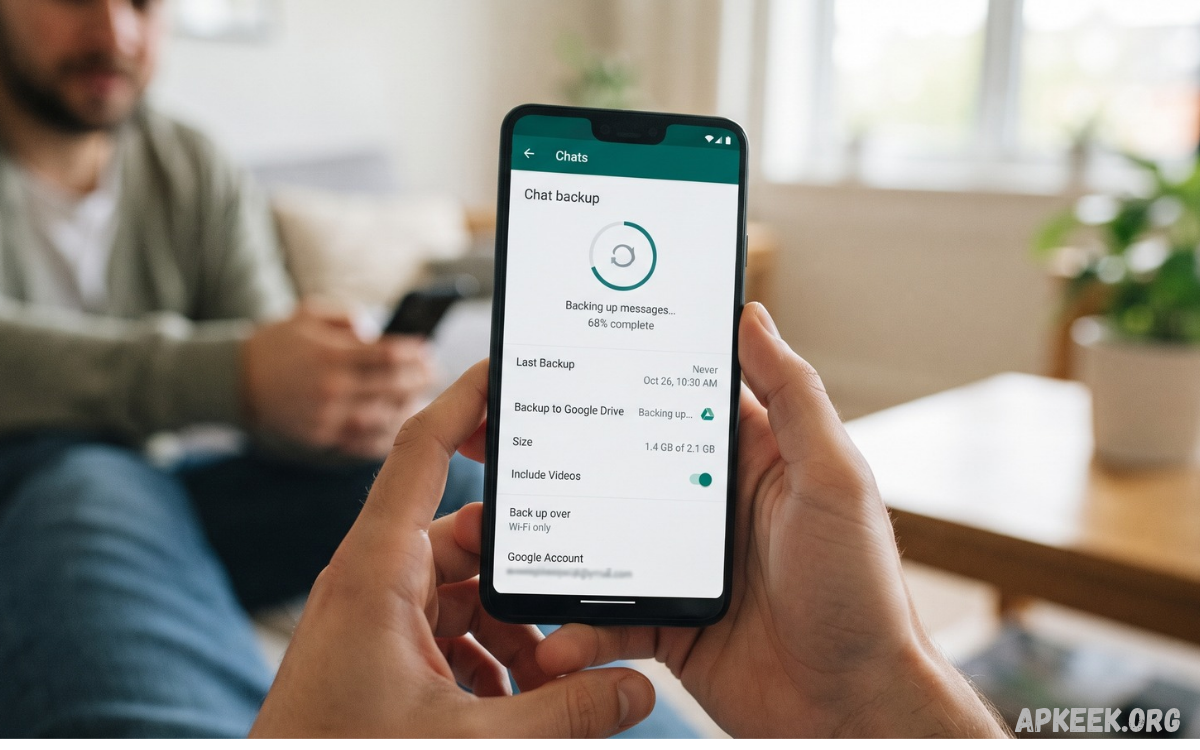
WhatsApp Chat Backup is an essential feature for anyone who uses WhatsApp for personal conversations, work communication, business discussions, photos, videos, documents, and important messages. A proper backup helps protect valuable conversations when you change phones, reinstall WhatsApp, reset a device, or accidentally lose app data.
WhatsApp provides different backup options depending on the device and operating system. Android users can generally use Google Account storage for cloud backups, while iPhone users can use iCloud. WhatsApp also supports local backup options on Android devices, giving users another way to preserve chat history.
What Is WhatsApp Chat Backup?
WhatsApp Chat Backup creates a copy of WhatsApp conversations and selected media so users can restore their information later. Depending on the device, backups can include messages, images, videos, voice messages, documents, stickers, and other supported content.
Cloud backups provide additional protection because the backup is stored separately from the phone. If a device becomes damaged, lost, stolen, or reset, a compatible cloud backup can help recover WhatsApp conversations after account verification and restoration.
Why WhatsApp Chat Backup Is Important
WhatsApp conversations can contain years of personal memories, business information, contact details, documents, photographs, and other valuable data. Losing this information after changing or resetting a phone can be frustrating, especially when no recent backup exists.
Regular WhatsApp chat backups reduce the risk of losing recent conversations. Automatic backups are particularly useful because they run on the selected schedule without requiring users to create a backup every time.
A backup also makes moving to another compatible device easier. Instead of starting with an empty WhatsApp account, users can restore supported chat history and continue conversations from the point covered by the available backup.
WhatsApp Chat Backup on Android
Android users can configure WhatsApp Chat Backup through WhatsApp settings. The Backup section lets users review the current backup status, choose a Google Account, set a backup frequency, and decide whether to include videos.
Before creating a cloud backup, users should make sure the device has a stable internet connection and sufficient cloud storage. Large media collections can significantly increase backup size, particularly when videos are included.
WhatsApp Chat Backup on iPhone
iPhone users can back up WhatsApp chats through iCloud. WhatsApp uses the device’s iCloud environment to store supported chat backup information, making it possible to restore conversations after reinstalling WhatsApp or setting it up on another compatible iPhone.
Users should ensure that iCloud is properly configured and that sufficient iCloud storage is available. The iPhone should also have a reliable internet connection while creating the backup.
To access WhatsApp backup settings, open WhatsApp and navigate to Settings > Chats > Chat Backup. From there, users can review the backup status, create a manual backup, and configure automatic backup preferences.
How to Create a WhatsApp Chat Backup
A manual backup is useful before changing phones, uninstalling WhatsApp, resetting a device, or doing major system maintenance. A manual backup provides a recent recovery point when the existing automatic backup may be outdated.
On Android, open WhatsApp, tap Settings, choose Chats, then tap Chat backup. Select the appropriate Google Account if required and start the backup process. Users can also configure automatic backups from the same section.
How Automatic WhatsApp Chat Backup Works
Automatic WhatsApp chat backup lets users choose a backup frequency instead of creating a backup manually each time. Available frequency options vary by platform and WhatsApp version but commonly include daily, weekly, and monthly schedules.
Automatic backups are convenient for users who frequently exchange important messages or media. A regular schedule reduces the amount of recent conversation data that could be lost if a phone suddenly stops working.
Users should periodically check the backup date rather than assuming automatic backup is functioning correctly. A recent timestamp confirms that WhatsApp has successfully created a backup.
What Does WhatsApp Chat Backup Include?
A WhatsApp Chat Backup can include different types of information, depending on the platform and backup settings. Chat messages are generally the primary component, while media inclusion can affect the overall backup size.
Photos, documents, voice messages, and other supported media can consume significant storage space. Videos are especially important because they can make backups much larger, and users may be able to exclude videos from the backup.
Not every WhatsApp element is included in a standard backup. Certain account-related information, settings, or content handled separately by WhatsApp may not be restored in exactly the same way as ordinary chat messages.
WhatsApp Chat Backup With Videos
Videos can make WhatsApp backups significantly larger than text-only backups. Users who receive or send many videos may notice that their backup takes longer and consumes more cloud storage.
On Android and iPhone, users can generally control whether videos are included in the backup. Disabling video backup can reduce backup size and speed up the process, while enabling it provides broader media coverage.
Users should choose the option based on their priorities. If WhatsApp videos contain important memories or business information, including them may be worthwhile. If storage is limited, excluding videos can provide a more practical backup.
WhatsApp Chat Backup Storage Requirements
Cloud storage is an important factor when creating WhatsApp backups. A backup cannot complete successfully if available storage is insufficient for the data WhatsApp needs to upload.
Users should check their available Google Account or iCloud storage before creating a large backup. Photos, videos, documents, and other files from other apps may already take up substantial storage.
Reducing unnecessary WhatsApp media can help control backup size. Users can also review large files and remove unwanted content from chats before creating a new backup.
How to Restore WhatsApp Chat Backup
Restoring a WhatsApp Chat Backup generally requires installing or reinstalling WhatsApp, verifying the correct phone number, and using the same compatible account or cloud environment associated with the backup.
During setup, WhatsApp can detect an available backup when the required conditions are satisfied. Users can then select the restore option and wait for the process to complete.
The restoration process may take longer when the backup contains a large amount of media. A stable internet connection and sufficient device storage can help prevent interruptions during restoration.
Restore WhatsApp Chat Backup on Android
To restore a cloud backup on Android, install WhatsApp on the new or reset device and verify the phone number associated with the backup. WhatsApp may then search for an available backup connected to the relevant Google Account.
When WhatsApp detects the backup, select Restore and let it retrieve the stored chat history. After restoring the messages, WhatsApp may continue restoring media in the background.
Using the correct phone number and Google Account is important. If WhatsApp cannot locate the expected backup, users should first confirm that the correct account is signed in on the device and that the backup exists.
Restore WhatsApp Chat Backup on iPhone
On iPhone, restoring a WhatsApp backup requires the appropriate iCloud configuration and the phone number associated with the backup. After installing WhatsApp and verifying the number, WhatsApp can search for an available iCloud backup.
If a compatible backup is found, select the restore option and wait for WhatsApp to recover the available chat history. Media restoration may continue after the initial messages become available.
Users should avoid interrupting the restoration process unnecessarily. A large backup may take longer, especially if it includes many photos, videos, documents, and voice messages.
WhatsApp Chat Backup During Phone Change
Changing phones is one of the most common reasons users create a WhatsApp backup. A recent backup provides an additional recovery option when moving from an old device to a new device.
Before switching phones, create a fresh backup on the old device and confirm the latest backup date. This step helps reduce the possibility of losing conversations created after the previous automatic backup.
Users should also avoid deleting WhatsApp from the old device immediately. Keeping the old device available until the new phone has successfully restored important chats adds an extra layer of safety.
WhatsApp Chat Backup and End-to-End Encryption
WhatsApp offers end-to-end encryption for personal messages and calls, while backup protection involves additional settings. Users should understand that cloud backup security can differ from the protection applied to messages while they are being transmitted between users.
WhatsApp provides an option for end-to-end encrypted backups. When enabled, the backup receives additional protection, and WhatsApp states that neither WhatsApp nor the cloud backup provider can read the backup contents.
Users should carefully protect the password or encryption key associated with an encrypted backup. Losing the required recovery information can prevent access to the encrypted backup.
How to Enable Encrypted WhatsApp Chat Backup
Users can access the encrypted backup option through WhatsApp’s chat backup settings. The interface may change between WhatsApp versions, but the feature is generally available in the backup settings.
When enabling encrypted backup, WhatsApp requires users to establish a secure authentication method, such as a password or supported encryption key. This information should be stored securely and should not be shared with other people.
Read Also: Best Way to Earn Money With Tiktok
WhatsApp Chat Backup Password and Encryption Key
An encrypted WhatsApp backup depends on credentials that allow access to the backup. These credentials are important because the backup is designed to prevent unauthorized access.
Users should never store the backup password or encryption key in an unsecured public location. A secure password manager or another trusted storage method can reduce the risk of accidental loss.
If the required credentials are forgotten, recovering an encrypted backup can become difficult or impossible. Therefore, users should create a recovery plan before enabling enhanced backup encryption.
WhatsApp Chat Backup Not Working
WhatsApp Chat Backup may fail for several reasons, including insufficient storage, unstable internet connectivity, incorrect account configuration, outdated software, or a backup that is too large.
The first troubleshooting step should be checking the available cloud storage and the date of the last successful backup. Users should also verify that the correct Google Account or iCloud account is being used.
Restarting the phone, updating WhatsApp, checking internet connectivity, and trying the backup again can resolve temporary problems. If the issue continues, users should examine WhatsApp’s current support guidance for platform-specific troubleshooting.
WhatsApp Chat Backup Stuck
A backup can appear stuck when uploading a large amount of media or when the network connection is slow or unstable. Video-heavy backups can take considerably longer than text-based backups.
Users should give the backup enough time to complete, especially when it contains large files. Connecting to a reliable Wi-Fi network can also improve the process.
If the backup repeatedly stops at the same point, check storage capacity and consider deleting unnecessary media. Updating WhatsApp and restarting the device may also resolve temporary software problems.
WhatsApp Chat Backup Not Found
A missing backup can occur when WhatsApp is connected to the wrong cloud account, a different phone number is being used, or the backup has been deleted or is otherwise unavailable.
Android users should verify the Google Account associated with the backup. iPhone users should check the relevant Apple account and iCloud configuration. The phone number used during WhatsApp verification should also match the number associated with the backup.
Users should avoid repeatedly reinstalling WhatsApp without checking these details. Confirming account information first can prevent unnecessary setup cycles and reduce confusion during restoration.
Local WhatsApp Chat Backup on Android
Android devices can also have local WhatsApp backup files. These files may provide another restoration route in certain circumstances, particularly when cloud backup is unavailable or when users are transferring information between compatible Android devices.
Local backups are stored on the device rather than exclusively in cloud storage. As a result, they can be lost if the phone is damaged, reset, lost, or replaced without transferring the backup files.
Users who rely on local backups should understand where WhatsApp stores them and how the current WhatsApp version handles local restoration. The process can vary as Android and WhatsApp storage systems change.
WhatsApp Chat Backup and Privacy
Backup privacy matters because chat histories can include personal conversations, photos, financial discussions, work documents, and other private information. Users should understand where their backups are stored and who may be able to access them.
Strong device security is an important part of protecting WhatsApp data. A secure screen lock, updated operating system, reputable security practices, and careful account management can reduce unauthorized access.
End-to-end encrypted backups provide an additional protection option for users who want stronger control over stored backup data. However, users must also protect the credentials required to access encrypted backups.
WhatsApp Chat Backup Best Practices
Users should create regular backups based on how frequently they use WhatsApp and how important their conversations are. Someone who uses WhatsApp for business communication may benefit from more frequent backups than someone who uses it occasionally.
Before changing phones, always create a fresh backup and verify its timestamp. This simple step can significantly reduce the risk of losing recent messages during a device transition.
It is also useful to periodically review WhatsApp storage and remove unnecessary large files. Reducing unnecessary media keeps backups manageable and improves the overall backup and restoration experience.
WhatsApp Chat Backup for Business Users
WhatsApp is widely used for customer communication, sales inquiries, order discussions, service requests, and internal business conversations. Losing business chats can create operational problems, particularly when messages contain customer information or important documents.
Business users should establish a consistent backup routine and avoid relying entirely on an old backup. Businesses may also need to store important information in appropriate business systems rather than relying solely on WhatsApp.
Businesses should consider privacy, access control, retention requirements, and organizational policies when managing WhatsApp conversations. Backup practices should support the company’s broader data-management strategy.
How to Reduce WhatsApp Chat Backup Size
The easiest way to reduce WhatsApp backup size is to review unnecessary media, especially large videos. Text messages generally take up much less storage than high-resolution photos and videos.
WhatsApp’s storage management tools can help users identify large files and frequently forwarded content. Removing unnecessary media from chats can reduce both device storage usage and future backup size.
Users should review important media before deleting anything. After removing unnecessary content, creating a fresh backup can produce a smaller, more manageable backup file.
WhatsApp Chat Backup Before Factory Reset
A factory reset removes local data from a device, so a recent backup is essential. Before resetting a phone, users should open WhatsApp’s backup settings and manually create a current backup.
After the backup finishes, check its timestamp and confirm that the expected cloud account is connected. If possible, verify that the backup process completed successfully rather than assuming the attempt worked.
Do not perform the factory reset immediately if the backup is still processing. Let the process finish to improve your chances of recovering recent WhatsApp conversations afterward.
WhatsApp Chat Backup Before Selling a Phone
Anyone selling or giving away a phone should create a current WhatsApp backup before removing personal data. This provides an additional recovery option if important conversations are needed later.
After confirming the backup, users should properly remove their accounts and perform the device’s recommended reset process. Personal information should not remain accessible to the next device owner.
Consider a backup part of the complete phone-transfer process. Creating the backup first and verifying the new device afterward provides a safer transition.
Common WhatsApp Chat Backup Mistakes
One common mistake is assuming that WhatsApp automatically creates a current backup. Automatic backup settings may be disabled, interrupted, or unable to complete because of storage limitations.
Another mistake is switching to a new phone without creating a final backup on the old device. Conversations created after the last successful backup may not be available during restoration.
Users can also overlook video storage. Large videos can dramatically increase backup size and may cause storage-related problems. Review backup settings before major device changes to prevent common issues.
Frequently Asked Questions
What is WhatsApp Chat Backup?
WhatsApp Chat Backup creates a stored copy of WhatsApp conversations and supported media. Depending on the device and settings, backups can use Google Cloud Storage, iCloud, or local Android storage.
How often should I back up WhatsApp chats?
The ideal frequency depends on how important your WhatsApp conversations are. Daily automatic backups can help users who regularly exchange important messages, documents, photos, or business information.
Can I back up WhatsApp chats without videos?
Yes. WhatsApp backup settings let you exclude videos. Excluding videos can significantly reduce backup size and save cloud storage.
Can I restore WhatsApp Chat Backup on a new phone?
Yes, supported backups can generally be restored during WhatsApp setup on a compatible new device. The required phone number, account, platform, and backup configuration must match the restoration requirements.
Why isn’t my WhatsApp chat backup working?
Common causes include insufficient cloud storage, unstable internet connectivity, incorrect account configuration, outdated WhatsApp software, or a very large backup. Checking storage and account settings is a good place to start.
Is WhatsApp Chat Backup secure?
WhatsApp provides backup security options, including end-to-end encrypted backups. Users should also protect their device, cloud account, backup password, and encryption credentials.
Can I create a manual WhatsApp backup?
Yes. WhatsApp provides a manual backup option within the Chat Backup settings. A manual backup is especially useful before changing phones or resetting a device.
What happens if I delete WhatsApp without creating a backup?
Recent conversations that are not included in an available backup may be difficult or impossible to recover. Creating a current backup before uninstalling WhatsApp is therefore strongly recommended.
How can I make WhatsApp Backup smaller?
Remove unnecessary large files, especially videos, from WhatsApp storage and consider excluding videos from future backups. This can reduce cloud storage consumption and backup time.
Should I back up WhatsApp before changing phones?
Yes. Creating and verifying a recent WhatsApp Chat Backup before changing phones is one of the safest ways to protect recent conversations and important media.
Conclusoin
WhatsApp Chat Backup is one of the most useful features for protecting conversations and important media. A properly configured backup can make phone upgrades, app reinstallations, device replacement, and data recovery significantly easier.
Users should regularly check their backup status, keep sufficient cloud storage, choose an appropriate backup frequency, and decide whether to include videos. Encrypted backups add an extra privacy layer for users who need stronger protection.
