

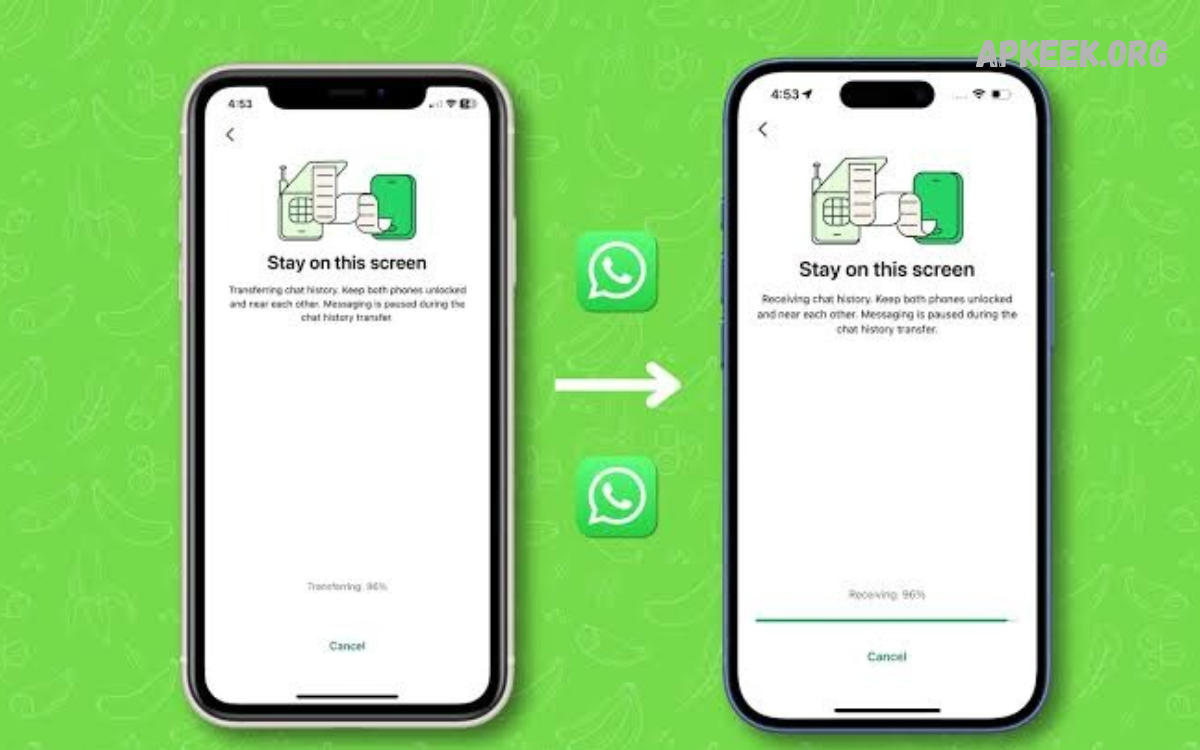
WhatsApp Chat Transfer to a New Phone helps users move conversations, photos, videos, documents, and other important messages between devices. Changing smartphones doesn’t mean losing valuable conversations when you follow the correct steps.
WhatsApp offers several transfer methods for Android and iPhone users. Depending on the old and new devices, users can choose direct chat transfer, Google Drive backup, iCloud backup, or the official Android-to-iPhone migration process.
Why WhatsApp Chat Transfer Matters
WhatsApp conversations often contain important personal messages, family discussions, work information, shared photographs, and documents. Keeping this information available after changing smartphones makes the transition easier and more convenient.
A proper transfer process helps preserve conversation history without manually saving individual messages. It also reduces the effort required to organize chats, restore media, and reconnect with existing conversations.
Things to Prepare Before Transferring WhatsApp Chats
Preparation plays an important role in a successful WhatsApp Chat Transfer to a New Phone. Both smartphones should have sufficient battery power, updated WhatsApp versions, and stable internet access when the selected method requires connectivity.
Users should also check available storage on the new device. A large WhatsApp backup containing photographs, videos, and documents may require considerable space during restoration.
Check Your Phone Compatibility
Before starting, identify whether the old and new smartphones use Android or iOS. The available transfer methods depend on the operating systems involved, so checking compatibility prevents unnecessary problems.
For Android-to-Android transfers, Google Drive backups and direct chat transfers are common options. iPhone-to-iPhone transfers support iCloud and WhatsApp’s direct transfer feature.
Update WhatsApp on Both Devices
Using an updated WhatsApp application helps reduce compatibility problems during migration. Open the Google Play Store or Apple App Store and check whether an update is available.
Install the latest supported version before beginning. Keep WhatsApp installed on the old phone until the new device successfully displays the transferred conversations.
Check Available Storage
WhatsApp backups may contain large amounts of media, especially when users regularly receive videos and photographs. Check the available storage before restoring conversations on the new smartphone.
If storage is limited, review unnecessary files and remove content you no longer need. Avoid deleting important WhatsApp information before creating a reliable backup.
WhatsApp Chat Transfer from Android to Android
Moving WhatsApp conversations between Android smartphones is relatively straightforward. Users can select Google Drive backup or WhatsApp’s direct chat transfer option, depending on device compatibility and personal preferences.
Both methods can transfer conversation history and supported media. The best option depends on internet availability, backup storage, device condition, and the amount of WhatsApp data.
Method One: Transfer WhatsApp Chats Using Google Drive
Google Drive provides a convenient way to back up WhatsApp conversations from an Android smartphone. You can later restore the backup on another compatible Android device using the same Google Account and phone number.
Open WhatsApp on the old smartphone and go to Settings > Chats> Chat Backup. Select the Google Account, review backup settings, and tap Back Up to create a fresh backup.
Restore WhatsApp Backup on the New Android Phone
Install WhatsApp on the new Android smartphone and verify the same phone number used on the previous device. Make sure the Google Account containing the backup is also added to the new smartphone.
After verification, WhatsApp should detect the available backup. Select Restore and wait for your conversation history to return before completing setup.
Method Two: Use WhatsApp Direct Chat Transfer
WhatsApp also supports direct chat transfer between compatible smartphones. This method lets users move their conversation history without relying on a cloud backup.
Open WhatsApp on the old device and visit Settings, Chats, and Transfer Chats. Follow the displayed instructions and scan the QR code using the new smartphone when prompted.
Complete the Direct Transfer Process
Keep both Android smartphones nearby during the transfer. Ensure that Wi-Fi and other requested permissions remain enabled throughout the process.
Avoid closing WhatsApp or switching devices during migration. Once the transfer finishes, open the new WhatsApp installation and check whether the expected conversations appear correctly.
WhatsApp Chat Transfer from iPhone to iPhone
Apple users can transfer WhatsApp conversations between iPhones through iCloud or WhatsApp’s supported direct transfer feature. Both options help preserve chat history and compatible media files.
Before beginning, make sure both iPhones use the same Apple Account when restoring an iCloud backup. The phone number must also match the number associated with the original WhatsApp account.
Method One: Transfer Chats Using iCloud
iCloud backup provides a convenient way to transfer WhatsApp conversations between iPhones. Users can create a fresh backup on the previous device and restore it during WhatsApp setup on the replacement smartphone.
Open WhatsApp, select Settings, Chats, and Chat Backup. Tap Back Up Now and wait for the backup to finish successfully.
Restore WhatsApp Chats from iCloud
Install WhatsApp on the new iPhone and verify the same phone number. Sign in to the Apple Account containing the WhatsApp backup and ensure iCloud Drive is enabled.
When WhatsApp detects the available backup, choose Restore Chat History. Keep the device connected to Wi-Fi until the restoration process completes.
Method Two: Use Direct iPhone Chat Transfer
Direct chat transfer provides another option for moving conversations between compatible iPhones. It can be useful when users prefer transferring information directly instead of relying on an existing cloud backup.
Open WhatsApp on the old iPhone and go to Settings > Chats> Transfer Chats to iPhone. Follow the instructions displayed on both devices to establish the transfer.
Finish the iPhone Migration
Keep both iPhones close together and connected to power when necessary. Follow the on-screen instructions until WhatsApp confirms the transfer is complete.
Open WhatsApp on the new iPhone and inspect important conversations. Check photographs, documents, and group discussions to confirm that the expected information is available.
WhatsApp Chat Transfer from Android to iPhone
Moving WhatsApp conversations from Android to iPhone requires a supported migration process. Apple’s Move to iOS application can transfer WhatsApp chat history during the initial iPhone setup.
This method has specific requirements, including compatible operating-system versions and an iPhone that is new or has been reset to its initial setup state. A Google Drive backup cannot simply be restored directly through WhatsApp on an iPhone.
Prepare Android and iPhone Devices
Install the latest compatible WhatsApp version on the Android smartphone. Download Apple’s Move to iOS application and make sure both devices have sufficient battery power and storage.
Connect both smartphones to a reliable power source. Keep them close together and follow the instructions displayed during the iPhone setup process.
Use Move to iOS
Start setting up the new iPhone and select the option to transfer data from Android when it appears. Open Move to iOS on the Android device and enter the code displayed on the iPhone.
Select WhatsApp when choosing the information to transfer. Follow the instructions to prepare the WhatsApp data and continue the migration process.
Complete WhatsApp Setup on iPhone
After the migration finishes, complete the remaining iPhone setup steps. Install WhatsApp from the App Store if it is not already available.
Open WhatsApp and verify the same phone number used on the Android smartphone. Follow the displayed instructions to import the transferred conversation history.
WhatsApp Chat Transfer from iPhone to Android
Moving WhatsApp conversations from iPhone to Android requires a supported device migration process. Compatible Android smartphones offer options to transfer WhatsApp information during initial device setup.
The exact procedure depends on the Android manufacturer and operating-system version. Some devices use a cable connection, while others provide manufacturer-supported migration instructions.
Prepare Both Smartphones
Update WhatsApp on the old iPhone and check the compatibility requirements of the new Android smartphone. Prepare a suitable cable when the Android transfer process requires a wired connection.
Keep both devices charged and avoid deleting WhatsApp from the iPhone before migration. Keep the old device available until the new phone displays the transferred conversations.
Follow the Android Setup Instructions
Start setting up the new Android smartphone and choose the supported option for transferring information from an iPhone. Connect the devices using the required cable or follow the wireless instructions provided by the manufacturer.
Select WhatsApp when the transfer options appear. Follow the instructions to prepare and move the available conversation history.
Import WhatsApp Conversations
Complete the Android setup and install WhatsApp when prompted. Verify the same phone number associated with the previous iPhone account.
Follow the on-screen import instructions and wait for WhatsApp to finish processing the transferred data. Review important conversations after setup to confirm successful migration.
How to Transfer WhatsApp Without Losing Messages
Protecting conversations should remain a priority throughout the migration process. Creating a fresh backup before switching phones provides an extra recovery option if the direct transfer encounters a problem.
Users should verify that the backup completed successfully instead of assuming that WhatsApp saved every conversation. Checking the backup date and account details can prevent unnecessary complications.
Create a Fresh Backup
Open WhatsApp settings and navigate to the Chat Backup section. Select the available backup option and wait until WhatsApp confirms that the latest backup has finished.
For Android, check the connected Google Account. For iPhone, confirm that the correct Apple Account and iCloud settings are available.
Keep the Original Phone Available
Avoid resetting, selling, or removing WhatsApp from the previous smartphone before checking the new installation. The original device provides another opportunity to create a backup if something goes wrong.
Once the new phone displays the expected conversations and media, users can consider removing information from the old device. Always confirm that important files are available before performing a factory reset.
Verify Important Conversations
Open several personal and group conversations after migration. Check recent messages, older discussions, shared photographs, and important documents.
Not every item necessarily appears immediately because some media may require additional downloading or processing. Allow WhatsApp enough time to complete the restoration before deciding that information is missing.
How to Transfer WhatsApp Business Chats
WhatsApp Business users can also move conversations between compatible smartphones. The transfer process depends on the operating systems and supported migration features available on both devices.
Business conversations may include customer messages, product information, order discussions, and important communication records. Creating a reliable backup before changing phones helps protect this information.
Read Also: How to Delete WhatsApp Messages for Everyone: Complete Step-by-Step Guide
Prepare WhatsApp Business
Open WhatsApp Business on the old smartphone and check the available Chat Backup settings. Create a fresh backup using the supported Google Drive or iCloud option when applicable.
Check business profile information, account details, and available storage. Keep the old smartphone available until the new installation has been verified.
Restore Business Conversations
Install WhatsApp Business on the new smartphone and verify the same business phone number. Follow the available restoration instructions when the application detects a compatible backup.
After restoration, inspect customer conversations, group messages, and shared documents. Check the business profile and other account settings separately because not every setting necessarily transfers in the same way as chat history.
Common WhatsApp Chat Transfer Problems
Sometimes WhatsApp Chat Transfer to a New Phone does not work as expected. Common reasons include outdated applications, incompatible devices, insufficient storage, incorrect account details, and interrupted connections.
Understanding these issues helps users identify the problem without repeatedly restarting the migration process. Checking the device requirements and backup information is usually a sensible first step.
WhatsApp Backup Not Found
A missing backup may indicate that the new device uses a different Google Account or Apple Account. It can also happen if the phone number doesn’t match the original WhatsApp account.
Check the account information on the old and new smartphones. Confirm that the latest backup exists before attempting another restoration.
WhatsApp Transfer Stuck
A transfer may pause because of unstable connectivity, low battery, or temporary device performance issues. Large conversation histories with videos and photos can also take longer.
Keep both smartphones connected to power and follow WhatsApp’s instructions. Avoid repeatedly interrupting the transfer because this can create additional complications.
Insufficient Storage Error
A storage warning means the new smartphone may not have enough available space to complete the migration. Check device storage and review large files before attempting restoration again.
Make sure enough space is available for the WhatsApp application, conversation history, and media files. The required amount depends on the size of the original WhatsApp data.
Verification Code Not Arriving
WhatsApp requires phone-number verification when activating an account on a new device. Incorrect numbers, network problems, and temporary SMS delivery delays can prevent the code from arriving.
Check the country code and phone number carefully. Follow the verification instructions shown in WhatsApp and avoid repeatedly requesting codes within a short period.
Some Photos or Videos Are Missing
Media files may take additional time to appear after conversation restoration. A slow connection or incomplete backup can also affect the availability of older photographs and videos.
Check the original device and backup details before assuming that files have disappeared. If the transfer is still processing, allow it to finish before reviewing the media library again.
Does WhatsApp Transfer Include Photos and Videos?
WhatsApp migration can include supported photographs, videos, voice messages, documents, and other conversation attachments. The exact content depends on the selected transfer method and the information included in the original backup.
Users should check their backup settings before migration. Some large media files may require additional time to restore, particularly when the backup contains several years of conversations.
Transfer Voice Messages and Documents
Voice messages and documents are useful parts of many WhatsApp conversations. Supported transfer methods can preserve these attachments alongside regular text messages.
After migration, open important conversations and check whether the expected files are available. Download any media that requires additional processing or restoration.
What Happens to Group Chats?
Group conversations generally remain part of the transferred chat history when the migration process completes successfully. Existing groups can continue appearing in WhatsApp without requiring users to rejoin each conversation.
However, group membership and chat history are different things. After migration, check important groups and confirm that the expected conversations are visible.
What Happens to WhatsApp Settings During Transfer?
WhatsApp migration focuses mainly on conversation history and supported media. Some account preferences, notification settings, and device-specific options may require separate configuration on the new smartphone.
After migration, review privacy settings, notification preferences, chat appearance, and linked-device information. Confirm that the new installation matches your preferred account configuration.
Review Privacy Settings
Open WhatsApp settings and visit the Privacy section. Check options related to profile visibility, last seen, online status, read receipts, and group invitations.
Some privacy preferences may require confirmation after migration. Reviewing these options helps users maintain their preferred communication experience.
Check Notification Preferences
Notification settings can differ between smartphones because Android and iOS manage alerts differently. Open the new device settings and WhatsApp notification options to review available controls.
Check message alerts, group notifications, sounds, and notification permissions. Adjust these settings according to your communication preferences.
Reconnect Linked Devices
WhatsApp Web and other linked devices may require a fresh connection after changing smartphones. Open Linked Devices in WhatsApp and review the devices associated with your account.
If an existing connection is unavailable, link the device again using the displayed QR code. Only connect devices that you recognize and trust.
Important Security Tips During WhatsApp Migration
Account security remains important when transferring WhatsApp conversations. Users should avoid sharing verification codes, account passwords, or other private information with anyone claiming to provide migration assistance.
Use official WhatsApp applications and supported device migration features. Avoid unknown transfer applications that request unnecessary access to personal messages or sensitive smartphone information.
Protect Your Verification Code
WhatsApp verification codes are private and should never be shared with another person. Someone with access to account verification information may attempt to activate your account on another device.
Enter the code only inside the official WhatsApp application. Ignore unexpected requests for verification details, even when they appear to come from familiar contacts.
Enable Two-Step Verification
Two-step verification adds another layer of security to a WhatsApp account. Users can enable this feature in Settings > Account> Two-Step Verification.
Create a private PIN and keep account recovery information secure. Never share the PIN with people requesting access to your WhatsApp account.
Avoid Unofficial Transfer Applications
Third-party migration applications may request extensive permissions to access smartphone information. Their privacy practices and security standards can vary significantly.
Use WhatsApp’s official transfer options whenever possible. Manufacturer-supported migration tools can also help when moving information between compatible Android and iPhone devices.
WhatsApp Chat Transfer for Different Phone Brands
Different smartphone manufacturers provide migration tools for moving information between devices. These tools can simplify the overall smartphone setup process, although WhatsApp compatibility depends on the migration method you choose.
Samsung, Google Pixel, Xiaomi, and other Android manufacturers may provide their own data-transfer features. Check the device instructions and WhatsApp requirements before beginning migration.
Samsung Galaxy Phones
Samsung smartphones offer Smart Switch for transferring supported information from another device. The app can move contacts, photos, videos, and other compatible content.
WhatsApp conversations may require a separate supported migration process. Follow the WhatsApp instructions during Samsung device setup instead of assuming that every chat transfers automatically through Smart Switch.
Google Pixel Phones
Google Pixel smartphones support data migration during initial setup. Users can transfer compatible information from another Android device or iPhone using the available setup instructions.
Check the WhatsApp migration requirements before starting. Follow the prompts to transfer conversations, and verify the same phone number when activating WhatsApp.
Xiaomi and Other Android Phones
Xiaomi and other Android manufacturers provide device-specific migration options. Available features may differ according to smartphone model, software version, and operating system.
Use the manufacturer’s official instructions alongside WhatsApp’s transfer process. Confirm that conversation history appears on the new device before removing the original WhatsApp installation.
Direct Transfer vs Cloud Backup
Direct transfer and cloud backup provide different ways to move WhatsApp conversations. Direct transfer moves supported information between compatible devices, while cloud backup stores a copy that can be restored later.
Choosing the right method depends on personal preferences and device compatibility. Users should consider internet availability, backup storage, transfer requirements, and the amount of conversation history.
Benefits of Direct Transfer
Direct transfer can be convenient because users don’t need to rely entirely on an existing cloud backup. It also provides a straightforward option when both smartphones are available.
However, device compatibility and connection requirements still matter. Follow the instructions carefully and keep both smartphones available until the process finishes.
Benefits of Cloud Backup
Cloud backup provides an additional recovery option when changing smartphones. Users can restore supported conversations after signing in with the correct account and verifying their phone number.
This method is useful when the original device is available for creating a fresh backup. However, restoration depends on cloud storage, account access, and backup availability.
Frequently Asked Questions
How do I transfer WhatsApp chats to a new phone?
Create a backup or use WhatsApp’s direct chat transfer feature on the old smartphone. Install WhatsApp on the new device, verify the same phone number, and follow the available restoration instructions.
Can I transfer WhatsApp without losing messages?
Yes, supported transfer methods can move conversation history between compatible devices. Creating a fresh backup before migration provides an additional recovery option if problems occur.
Can I transfer WhatsApp chats without Google Drive?
Yes, compatible Android smartphones support direct chat transfer. This option allows users to move conversations without depending on a Google Drive backup.
Can I move WhatsApp from Android to iPhone?
Yes, Apple’s Move to iOS application supports WhatsApp migration during compatible iPhone setup. Follow the requirements and use the same phone number when importing conversations.
Can I transfer WhatsApp from iPhone to Android?
Yes, compatible Android devices support WhatsApp migration from iPhone. The process may require a cable connection or manufacturer-supported setup instructions.
Does WhatsApp transfer include photos and videos?
Supported migration methods can include photographs, videos, voice messages, and documents. The available content depends on the transfer method and original backup.
Can I transfer WhatsApp chats without a SIM card?
WhatsApp requires access to the account’s phone-number verification process. A SIM card does not necessarily need to remain inside the new device if the number can receive verification through another supported method.
Will my WhatsApp groups transfer to a new phone?
Existing group conversations generally remain available when chat history transfers successfully. Check important groups after migration to confirm that their conversations appear correctly.
Why is my WhatsApp backup not showing?
The backup may be associated with a different Google Account or Apple Account. Check the original backup details and verify that the same WhatsApp phone number is being used.
Should I delete WhatsApp from my old phone after transferring?
Keep WhatsApp on the old smartphone until the new device displays the expected conversations and media. Remove the old installation only after confirming that important information is available.
Conclusion
WhatsApp Chat Transfer to a New Phone makes switching phones easier while helping users preserve important conversations, photos, videos, and documents. Android and iPhone users can choose direct transfer, Google Drive, iCloud, or supported migration tools based on device compatibility.
Creating a fresh backup, checking available storage, and following the official instructions can reduce common migration problems. Always verify conversation history on the new smartphone before resetting or removing WhatsApp from the previous device.
