

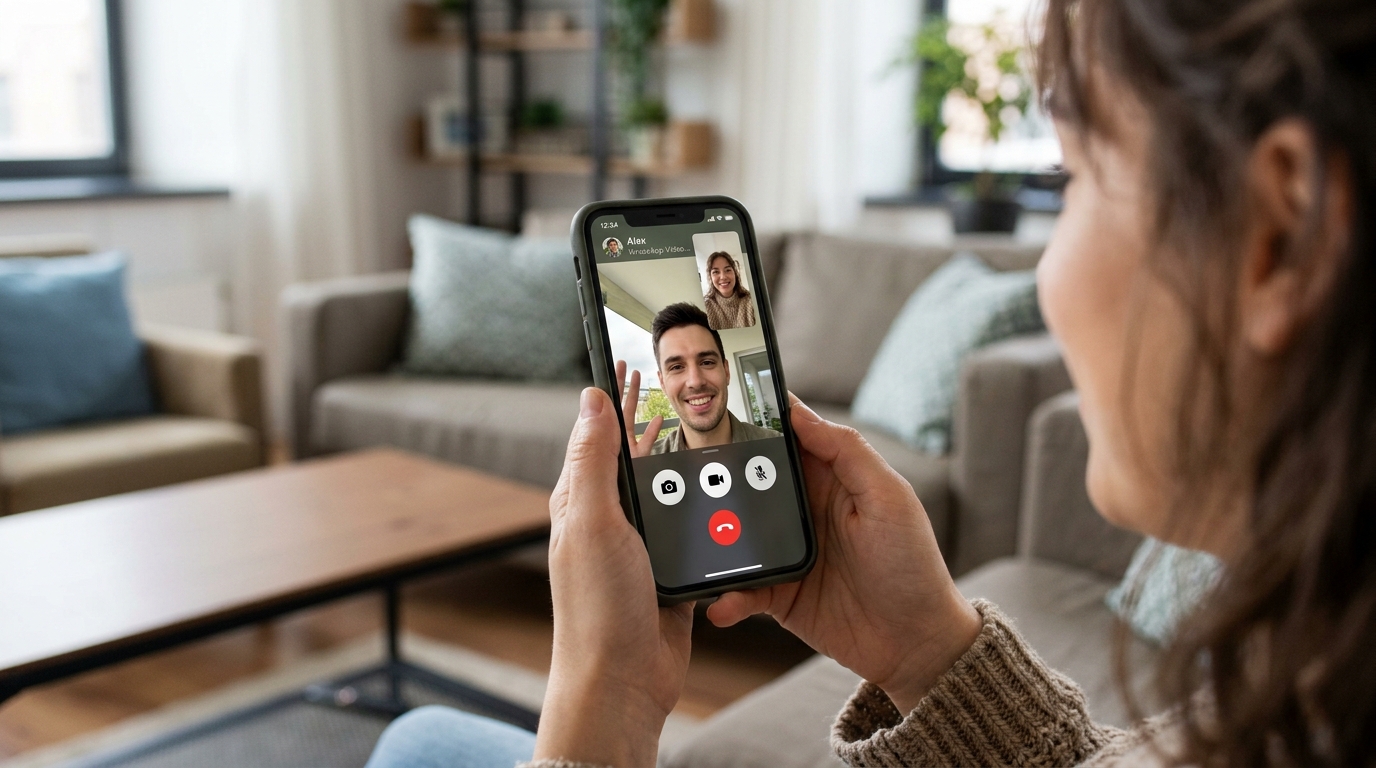
WhatsApp Video Call has become an essential communication feature for people who want face-to-face conversations through smartphones. This feature allows users to connect with friends, family members, classmates, and colleagues from different locations.
WhatsApp Video Call combines video and audio communication within one simple interface. Users can start individual conversations, invite multiple participants, switch between front and rear cameras, mute microphones, and manage different calling options.
What Is a WhatsApp Video Call?
WhatsApp Video Call is a communication feature that lets users see and hear another person over an internet connection. Instead of relying on traditional cellular voice networks, the service uses Wi-Fi or mobile data to establish video conversations.
The feature works through WhatsApp accounts connected to active phone numbers. Users can initiate calls directly from individual chats, contact information screens, or the Calls tab. Once another participant accepts the invitation, both users can communicate through live video and audio.
How WhatsApp Video Calling Works
WhatsApp Video Calling uses internet connectivity to transmit audio and video between connected devices. When someone starts a call, WhatsApp sends a notification to the selected contact. The recipient can accept or decline the incoming call according to their availability and personal preference.
During an active conversation, the application continuously transfers audio and video information through the internet. Connection quality depends on network stability, device performance, camera quality, and available bandwidth.
How to Start a WhatsApp Video Call
Starting a WhatsApp video call requires only a few simple steps. Open WhatsApp, select an existing conversation, and tap the video camera icon near the top of the screen. The app calls the selected contact and displays the connection status.
When the recipient answers, the video conversation starts automatically. Users can adjust their camera position, mute the microphone, or switch between available cameras during the conversation. To end the call, tap the red disconnect button displayed on the calling interface.
WhatsApp Video Call Features
WhatsApp Video Call includes several useful features designed to improve everyday communication. Camera switching, microphone controls, speaker options, and group calling help users manage conversations as needed. These tools provide flexibility during personal and professional communication.
The application also supports convenient calling directly from existing conversations. Users do not need to open separate communication software or create complicated accounts. Familiar chat controls and contact information make the calling experience straightforward for regular WhatsApp users.
Individual WhatsApp Video Calls
Individual video calls allow two people to communicate privately through live audio and video. This option works well for conversations with friends, family members, teachers, and colleagues. Participants can discuss different subjects while observing facial expressions and visual reactions.
One-to-one calling also provides a convenient alternative to ordinary voice communication. Users can explain something visually, share personal updates, or discuss important matters without meeting physically. Internet availability and compatible devices remain necessary for successful communication.
WhatsApp Group Video Calls
Group video calling allows multiple participants to join one conversation through WhatsApp. This feature makes it easier for families, friends, and small teams to communicate together. Participants can join from different locations without arranging a physical meeting.
Group calls are useful for family discussions, study conversations, and casual social interaction. The available participant limit can depend on WhatsApp’s current calling support and application version. Users should check the calling interface for available options before inviting additional participants.
WhatsApp Video Call on Android
Android smartphones support WhatsApp Video Call through the official mobile application. Users can open their contact conversations and select the video camera icon to initiate a call. The application requests camera and microphone permissions when these features have not already been authorized.
Android users can also manage application permissions through their device settings. Camera and microphone access must remain available for normal video communication. Updated software, sufficient storage, and a reliable internet connection can help maintain a better calling experience.
WhatsApp Video Call on iPhone
iPhone users can access WhatsApp Video Call through the official iOS application. The calling process remains similar to Android, allowing users to open chats and tap the video camera icon. Incoming calls appear through the device’s notification and calling interface.
iOS privacy settings provide separate controls for camera and microphone access. Users should check these permissions if video or audio functions fail during a conversation. Keeping WhatsApp and iOS updated can also improve compatibility and resolve certain technical problems.
WhatsApp Video Call Privacy and Security
Privacy plays an important role in online communication. WhatsApp provides end-to-end encryption for personal calls, helping protect conversations from unauthorized access during transmission. This protection applies to supported individual and group calls.
Users should still follow sensible privacy practices when communicating online. Avoid accepting suspicious calls, sharing sensitive information with unknown contacts, or granting unnecessary application permissions.
WhatsApp Video Call Settings
WhatsApp provides different settings that help users manage their calling experience. Smartphone permission controls determine whether the application can access the camera and microphone. Notification settings also let users manage incoming call alerts based on their preferences.
Device settings can provide additional control over network usage, battery consumption, and application permissions. Users should review these options when experiencing calling problems or unexpected behavior.
How to Switch Cameras During a WhatsApp Video Call
WhatsApp allows users to switch between front and rear cameras during supported video calls. The front camera is useful for showing your face, while the rear camera can display nearby surroundings or objects. A camera-switching control appears within the active calling interface.
This feature provides flexibility when explaining something visually or showing an item during a conversation. Users should check their surroundings before activating the rear camera. Camera switching can also depend on device compatibility and the availability of functioning camera hardware.
How to Mute Audio During a WhatsApp Video Call
The microphone control allows users to temporarily mute their audio during a conversation. This option becomes useful when background noise makes communication difficult or when another person needs to speak without interruption. The microphone can generally be reactivated through the same control.
Muting audio does not automatically disconnect the video conversation. Other participants can continue seeing the active video feed while the microphone remains disabled. Checking the microphone status before speaking helps prevent communication misunderstandings.
WhatsApp Video Call Data Usage
WhatsApp Video Call consumes internet data because the application continuously transfers audio and video information. Data consumption varies according to call duration, video quality, network conditions, and device performance. Longer conversations generally require more internet data than shorter calls.
Wi-Fi can help reduce mobile data consumption when a reliable wireless network is available. Users with limited mobile data packages should monitor their usage through smartphone settings. WhatsApp may also provide calling-related data controls, depending on the application version.
WhatsApp Video Call on Wi-Fi and Mobile Data
WhatsApp supports video calling over Wi-Fi and mobile data. Wi-Fi is often convenient for longer conversations because users can communicate without directly consuming their cellular data allowance. A strong wireless signal helps maintain consistent audio and video quality.
Mobile data provides flexibility when Wi-Fi is unavailable. However, connection performance depends on network coverage, signal strength, and available bandwidth. Switching between reliable networks can sometimes resolve connection difficulties during important conversations.
WhatsApp Video Call Quality
Video quality depends on several technical factors, including camera capabilities, internet speed, lighting conditions, and device performance. A strong network connection generally helps reduce freezing and audio interruptions. Proper lighting also makes faces easier to see during conversations.
Users can improve their calling experience by choosing locations with stable internet connectivity. Closing unnecessary applications may also help devices with limited processing resources. Keeping the camera lens clean and positioning the phone steadily can improve visual communication.
WhatsApp Video Call Not Working
Sometimes WhatsApp video calls may fail to connect because of internet problems, outdated software, or missing application permissions. Camera and microphone restrictions can also prevent normal calling functions. Checking these basic settings provides a useful starting point when troubleshooting.
Users should verify their internet connection, restart WhatsApp, and check for available app updates. Restarting the smartphone may resolve temporary software issues. If problems continue, reviewing device permissions and WhatsApp’s official support information can help identify the cause.
WhatsApp Video Call No Sound Problem
Audio problems can interrupt conversations even when the video connection works correctly. Incorrect microphone permissions, device audio settings, Bluetooth connections, or temporary software errors may affect sound transmission. Checking the microphone icon is an important first step.
Users should also check the phone’s volume and connected audio accessories. Disconnecting an unused Bluetooth device may restore sound through the smartphone speaker. Testing another call can help determine whether the problem affects one conversation or the entire application.
Read Also: Online Course Business Ideas: Best Profitable Online Courses to Start in 2026
WhatsApp Video Call Camera Not Working
Camera problems can prevent users from appearing on video during conversations. These issues may result from restricted permissions, another application using the camera, outdated software, or hardware problems. Checking camera access through smartphone settings can help resolve common difficulties.
Users should close any apps that might be using the camera and reopen WhatsApp. Testing the camera through the phone’s regular camera application can help identify possible device-related problems. Persistent camera failures may require additional troubleshooting or professional device support.
WhatsApp Video Call Battery Consumption
Video calling can consume more battery power than ordinary messaging because the camera, microphone, internet connection, and display remain active. Longer conversations may increase energy consumption, particularly on older smartphones or devices with limited battery capacity.
Users can manage battery usage by reducing unnecessary background activity and keeping screen brightness reasonable. Connecting a device to a suitable charger during longer conversations can help prevent unexpected shutdowns.
WhatsApp Video Call on Desktop
WhatsApp supports calling through compatible desktop applications. This option allows users to communicate through a computer instead of relying entirely on a smartphone screen. Desktop calling can be convenient for people who regularly work or study using computers.
Compatible computers require a suitable camera, microphone, speaker, and internet access. Users should review desktop application permissions before starting conversations. Available calling features may vary by operating system, application version, and device compatibility.
WhatsApp Video Call for Family Communication
Video calling helps families remain connected when relatives live in different cities or countries. Parents, children, siblings, and other family members can communicate through live conversations without arranging physical meetings. Visual communication makes everyday updates feel more interactive.
Families can use individual or group calls according to their communication needs. Group conversations provide a convenient way to connect with several relatives at once. Responsible device use and suitable privacy settings remain important during family communication.
WhatsApp Video Call for Students
Students can use WhatsApp Video Call for educational discussions and communication with classmates. Group conversations provide opportunities to discuss assignments, clarify difficult topics, and exchange learning ideas. Teachers may also use video conversations for suitable educational communication.
Students should maintain appropriate online behavior and protect personal information during digital conversations. Important academic discussions should remain focused and respectful.
WhatsApp Video Call for Professional Communication
WhatsApp Video Call can support simple professional conversations between colleagues, clients, and small teams. Users can discuss basic work-related matters without arranging an in-person meeting. Visual communication can also make certain explanations easier to understand.
Professional users should consider privacy, availability, and workplace communication policies before starting calls. Sensitive business discussions may require dedicated communication platforms with suitable organizational controls.
WhatsApp Video Call Compared With Voice Calls
Voice calls transmit audio without requiring continuous video communication. They can be convenient when users have limited internet bandwidth, need to save battery power, or prefer audio-only conversations. Voice communication also offers flexibility when video isn’t necessary.
Video calls add a visual element that helps participants observe facial expressions and surroundings. However, they generally require more device resources and internet data. Choosing between voice and video depends on the conversation’s needs, connection quality, and personal preference.
Tips for a Better WhatsApp Video Call Experience
A few simple habits can improve everyday video communication. Choose a location with reliable internet, sufficient lighting, and limited background noise. Position the smartphone securely and keep the camera at a comfortable viewing angle.
Users should also check battery levels, microphone permissions, and application updates before important conversations. Closing unnecessary background applications may help devices operate more smoothly.
Common WhatsApp Video Call Problems and Solutions
Connection failures, camera restrictions, microphone issues, and unexpected application interruptions are common technical challenges. These problems can originate from smartphone settings, network limitations, software compatibility, or temporary service disruptions.
Users can begin with basic checks such as internet availability, application permissions, device restarts, and software updates. If the issue remains unresolved, consult official WhatsApp support or the smartphone manufacturer’s troubleshooting guidance.
Future of WhatsApp Video Calling
Internet communication continues to develop as smartphones become more capable and network technology improves. Video calling applications are evolving through interface improvements, accessibility options, and additional communication features.
WhatsApp may introduce changes to calling functionality through future application updates. Users should rely on official release information when checking newly available features. Keeping applications updated helps users access supported improvements while maintaining compatibility with their devices.
Frequently Asked Questions
What is WhatsApp Video Call?
WhatsApp Video Call is an internet-based feature that lets users communicate through live audio and video.
Is WhatsApp Video Call free?
WhatsApp does not charge a separate calling fee, but mobile data or Wi-Fi may incur costs depending on your internet provider.
Can I make WhatsApp Video Calls on Android?
Yes. Android users can make video calls through the official WhatsApp application on compatible devices.
Does WhatsApp support video calling on iPhone?
Yes. Compatible iPhones support individual and group video calls through WhatsApp.
Can multiple people join a WhatsApp Video Call?
Yes. WhatsApp supports group video conversations, subject to its current participant limits.
Does WhatsApp Video Call use internet data?
Yes. Video calls use Wi-Fi or mobile data to transmit audio and video information.
Are WhatsApp Video Calls encrypted?
WhatsApp personal calls use end-to-end encryption to help protect communication between participants.
Why is my WhatsApp Video Call not working?
Internet problems, outdated apps, restricted permissions, and temporary device issues can affect calling.
Can I switch cameras during a WhatsApp Video Call?
Yes. Supported devices allow users to switch between front and rear cameras during active calls.
Can I use WhatsApp Video Call on a computer?
Yes. Compatible WhatsApp desktop applications support video calling on supported computers.
Conclusion
WhatsApp Video Call provides a convenient way to communicate through live audio and video. Its simple interface, individual calling, group conversations, camera controls, and privacy features make it useful for everyday communication.
A reliable internet connection, appropriate privacy settings, and updated software contribute to a better experience. Whether communicating with family, discussing educational topics, or handling simple professional conversations, WhatsApp Video Call offers an accessible communication solution for modern smartphone users.
