

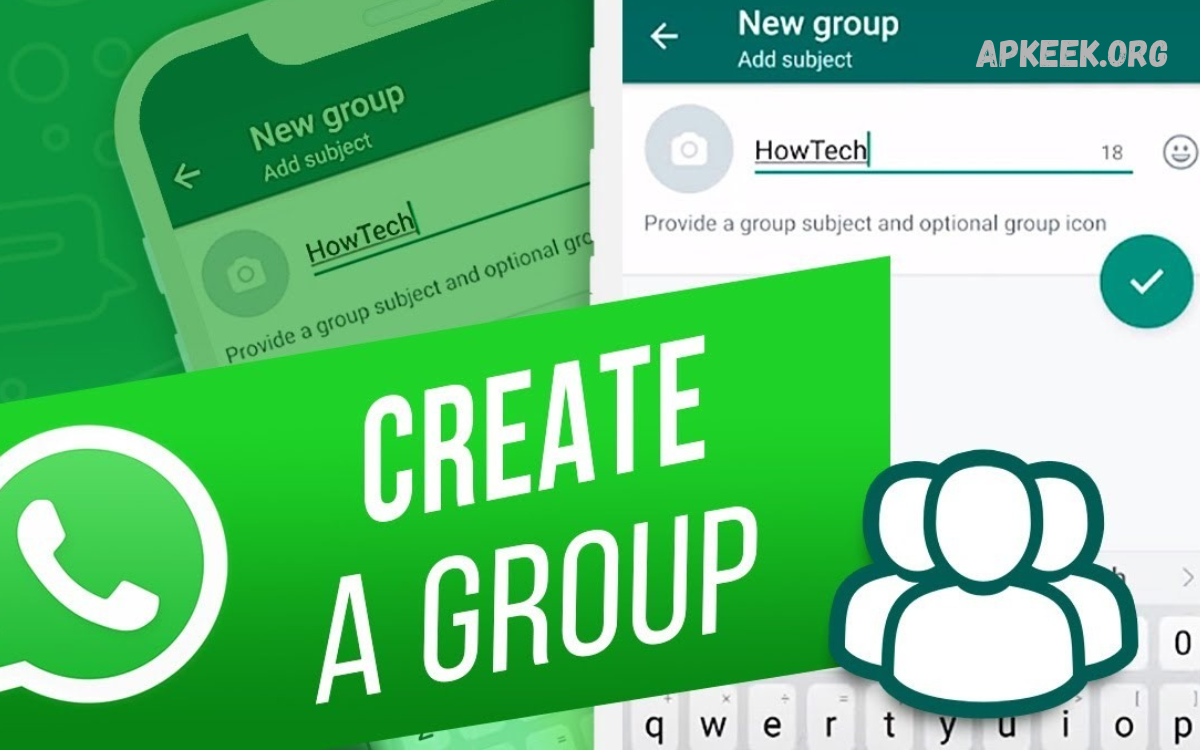
WhatsApp groups provide a simple way to communicate with multiple people through one conversation. Users can share messages, photos, videos, documents, voice notes, and important updates without sending individual messages.
Learning how to create a WhatsApp group helps users connect with family members, friends, classmates, colleagues, and communities. WhatsApp offers useful group features that make communication faster, easier, and more organized.
What Is a WhatsApp Group?
A WhatsApp group is a shared conversation where multiple participants communicate through one chat. Every member can view group messages, respond to discussions, and share supported media files according to the group’s permissions.
WhatsApp groups work on Android, iPhone, and supported desktop devices. Users can create separate groups for different purposes, making it easier to manage conversations without mixing personal and professional discussions.
Requirements Before Creating a WhatsApp Group
Before creating a WhatsApp group, install the latest version of WhatsApp on your smartphone. Make sure your phone has an active internet connection, and your account is properly registered with a mobile number.
You should also have contacts saved on your device if you want to add people directly. Updated contact information makes the process easier and helps you identify the correct participants when selecting members.
How to Create a WhatsApp Group on Android
Creating a WhatsApp group on Android requires only a few simple steps. Open WhatsApp, go to the Chats section, and tap the new chat icon to see the available options.
Select New Group from the displayed menu. Choose the contacts you want to include, tap the next arrow, enter a suitable group name, and tap the confirmation button to finish.
How to Create a WhatsApp Group on iPhone
Creating a WhatsApp group on iPhone is also straightforward. Open WhatsApp, navigate to the Chats tab, and tap the new message icon displayed in the upper corner.
Choose New Group, select your preferred contacts, and tap Next. Enter a group subject, add an optional group picture, and tap Create to complete the process.
How to Add Members to a WhatsApp Group
Adding members expands group communication and lets more people participate in shared conversations. Open the group chat, tap its name at the top, and tap Add Members.
Select the contacts you want to invite and confirm your selection. Depending on group privacy settings, administrators may need to approve certain membership requests before new participants can join.
How to Create a WhatsApp Group Name
A suitable group name makes conversations easier to recognize. WhatsApp allows administrators and permitted participants to choose a group subject that reflects the conversation’s purpose.
Choose a short, meaningful name that members can understand immediately. Examples include family updates, school friends, office team, travel plans, and project discussion.
How to Add a WhatsApp Group Profile Picture
A group profile picture gives conversations a recognizable identity. Open the group information screen, tap the existing profile image, and select the camera or gallery option.
Choose a suitable image from your phone or capture a new picture. Adjust the image as needed, then save your selection to update the group’s profile.
How to Create a WhatsApp Group Link
WhatsApp provides an invitation link feature that allows people to join a group without requiring administrators to add every participant manually. Open Group Info and locate Invite via Link.
Select Copy Link to share the invitation through another conversation or supported platform. Anyone with access to the link may request to join, depending on the group’s current invitation settings.
How to Share a WhatsApp Group Invitation
Sharing an invitation link makes group membership more convenient. After generating the link, send it to selected contacts through WhatsApp, email, or another communication platform.
Before sharing an invitation, consider who should access the group. Avoid posting private group links publicly because unwanted participants may use them to request access.
How to Manage WhatsApp Group Settings
WhatsApp includes several group management options that help administrators control conversations. Open Group Info to access settings related to members, permissions, invitations, and group information.
These controls help keep discussions organized and reduce unnecessary changes. Administrators can decide who may edit group information, send messages, or invite additional participants.
How to Make Someone a WhatsApp Group Admin
Group administrators help manage membership and maintain group settings. Open Group Info, find the participant you want to promote, and tap their name to access available management options.
Select Make Group Admin to assign administrative permissions. Choose responsible participants because administrators can manage membership and control important group settings.
How to Remove Someone from a WhatsApp Group
Administrators can remove participants when membership changes or someone no longer needs access. Open Group Info, locate the participant, and select the available removal option.
Confirm the action when WhatsApp displays its confirmation message. Removed participants will no longer receive new group messages unless they join again through an approved invitation.
How to Leave a WhatsApp Group
WhatsApp allows members to leave conversations whenever they no longer need participation. Open the group chat, tap the group name, scroll through the information screen, and select Exit Group.
Confirm your decision to leave the conversation. You will stop receiving new group messages, although previous messages may remain visible in your chat history until you delete the conversation.
How to Delete a WhatsApp Group
Deleting a group requires understanding the difference between leaving and removing a conversation. Regular members can exit a group and delete its chat from their devices, while administrators have additional membership controls.
Administrators who want to close a group generally need to remove remaining participants before exiting. After leaving, they can delete the group conversation from their chat list.
How to Change WhatsApp Group Description
A group description explains its purpose and provides useful information for participants. Open Group Info, select Add Group Description or the existing description, and enter relevant details.
You can include group rules, important announcements, meeting information, or communication guidelines. Keep the description clear and concise so members can understand the group’s purpose quickly.
How to Control Who Can Send Messages
WhatsApp group permissions let administrators control who can send messages. Open Group Info, select Group Permissions or Group Settings, and locate the Send Messages option.
Choose the available setting that matches your communication requirements. Administrators can allow all participants to send messages or restrict messaging to administrators for announcement-based groups.
How to Restrict Group Information Changes
Group information includes the subject, description, and profile picture. Administrators can control which participants can modify these details.
Open Group Info and access the group editing permissions. Select the appropriate administrator-only setting to prevent unauthorized changes and keep group information consistent.
Read Also: WhatsApp Chat Transfer to a New Phone: Complete Guide
How to Mute WhatsApp Group Notifications
Busy WhatsApp groups can generate frequent notifications throughout the day. Muting notifications reduces interruptions while letting you check conversations whenever convenient.
Open the group chat, tap its name, and select Notifications or Mute Notifications. Choose the duration that suits your needs, then confirm your selection.
How to Pin a WhatsApp Group Chat
Pinning a group chat keeps an important conversation near the top of your chat list. This feature helps users find frequently used groups without scrolling through multiple conversations.
On Android or iPhone, use the chat list options to pin the selected conversation. The group remains easier to access until you decide to unpin it.
How to Search Messages in a WhatsApp Group
WhatsApp includes a search feature that helps users locate older messages. Open the group conversation, access the search option, and enter a keyword related to the information you need.
Search results can help identify previous announcements, shared details, and important discussions. This feature is especially useful in active groups with long message histories.
How to Share Photos and Videos in a WhatsApp Group
Group members can share photos and videos directly through the conversation. Open the group chat, tap the attachment or plus icon, and choose the media files you want to share.
WhatsApp allows participants to send supported media from their device gallery. Consider group privacy before sharing personal photographs, private recordings, or sensitive information.
How to Share Documents in a WhatsApp Group
WhatsApp supports document sharing for different communication needs. Open the group conversation, tap the attachment option, choose Document, and select the required file from your device.
This feature helps students, employees, and teams exchange useful materials. Supported file formats and size limits may vary according to WhatsApp’s current platform restrictions.
How to Create a WhatsApp Group for Family
Family groups provide a convenient space to share announcements, photos, celebrations, and everyday updates. Create a new group, select family contacts, and choose a recognizable group name.
Set suitable permissions and invite trusted relatives. A clear group description can explain its purpose and help members understand what type of information belongs in the conversation.
How to Create a WhatsApp Group for School or College
Educational groups help students and teachers exchange study materials, announcements, schedules, and academic updates. Select the relevant participants and create a group with a clear educational purpose.
Choose an appropriate name, add useful group information, and establish communication guidelines. Administrators can manage permissions to keep discussions organized and focused on educational activities.
How to Create a WhatsApp Group for Business
Business groups support communication between employees, departments, and project teams. Create a group, add the relevant participants, and choose a professional name that identifies the business purpose.
Use group descriptions to explain responsibilities and communication expectations. Restrict unnecessary changes when appropriate and avoid sharing confidential business information with unauthorized participants.
WhatsApp Group Privacy and Security Settings
Privacy settings help users maintain better control over their WhatsApp group experience. WhatsApp provides options for managing who can add contacts to groups, helping reduce unwanted invitations.
Review your account privacy settings regularly and avoid sharing invitation links with unknown people. Administrators should also monitor membership and remove suspicious accounts when necessary.
Common Problems When Creating a WhatsApp Group
Some users experience problems while creating groups because of outdated applications, internet interruptions, or contact synchronization issues. Restarting WhatsApp and checking the internet connection may resolve temporary difficulties.
If a contact does not appear, verify that the number is saved correctly and that WhatsApp has permission to access contacts. Updating the application may also help resolve compatibility problems.
WhatsApp Group Creation Tips for Beginners
Beginners should create groups with a clear purpose and select relevant participants. A recognizable name, suitable profile picture, and informative description make the conversation easier to understand.
Avoid adding unnecessary contacts or sharing excessive messages. Establish simple communication guidelines and use available privacy controls to maintain a comfortable group environment.
Advantages of Creating a WhatsApp Group
WhatsApp groups make communication more efficient by allowing multiple people to receive the same information. Members can share updates, discuss plans, exchange documents, and participate in conversations from different locations.
Groups also reduce the need to send repeated individual messages. Separate conversations for family, education, work, and hobbies help users organize communication more effectively.
Disadvantages of WhatsApp Groups
Large groups sometimes generate excessive notifications and unnecessary conversations. Frequent messages may make important information difficult to find, especially when participants share unrelated content.
Privacy also requires attention because group members may see certain profile information and shared messages. Administrators should establish clear rules and invite only appropriate participants.
Frequently Asked Questions
Can I Create a WhatsApp Group Without Adding Anyone?
WhatsApp generally requires selecting at least one participant when creating a group. After creation, you can manage membership and invitation options according to the available group settings.
How Many People Can Join a WhatsApp Group?
WhatsApp supports groups with up to 1,024 participants under its current standard group limit. Availability and specific features may vary with application updates.
Can I Create Multiple WhatsApp Groups?
Yes, WhatsApp allows users to create multiple groups for different purposes. You can organize separate conversations for family, friends, school, work, and other communities.
Can I Create a WhatsApp Group Without Being an Admin?
The person who creates a WhatsApp group automatically becomes its first administrator. Other participants receive administrator permissions only when an existing administrator promotes them.
Can I Add Someone Without Saving Their Number?
WhatsApp provides group invitation links that can help people join without requiring administrators to save every phone number. You can share the link with intended participants.
Can I Change a WhatsApp Group Name Later?
Yes, WhatsApp allows authorized participants to change the group name. Open Group Info, select the existing subject, enter a new name, and save your changes.
Can I Hide My WhatsApp Group From Other People?
WhatsApp does not provide a feature that makes an ordinary group completely invisible to its participants. However, chat lock and privacy options can help protect access to conversations on your device.
Can I Create a WhatsApp Group on WhatsApp Web?
Yes, WhatsApp Web supports group creation. Open WhatsApp Web, select New Chat, choose New Group, select contacts, and follow the on-screen instructions.
How Can I Stop People From Adding Me to Random Groups?
Open WhatsApp Settings, select Privacy, and find Groups. Choose the available contact permissions to control who can add you directly to group conversations.
Can I Rejoin a WhatsApp Group After Leaving?
Yes, you may rejoin if an administrator adds you again or provides an invitation link. Your ability to return depends on the group’s membership settings and invitation permissions.
Conclusion
Learning how to create a WhatsApp Group makes communication easier for families, friends, students, and professional teams. WhatsApp offers simple creation steps alongside useful features for managing participants, sharing information, and controlling group permissions.
Follow the instructions in this guide to create your first group and customize its settings. Choose trusted participants, maintain clear communication rules, and use privacy options to keep conversations organized and secure.
