

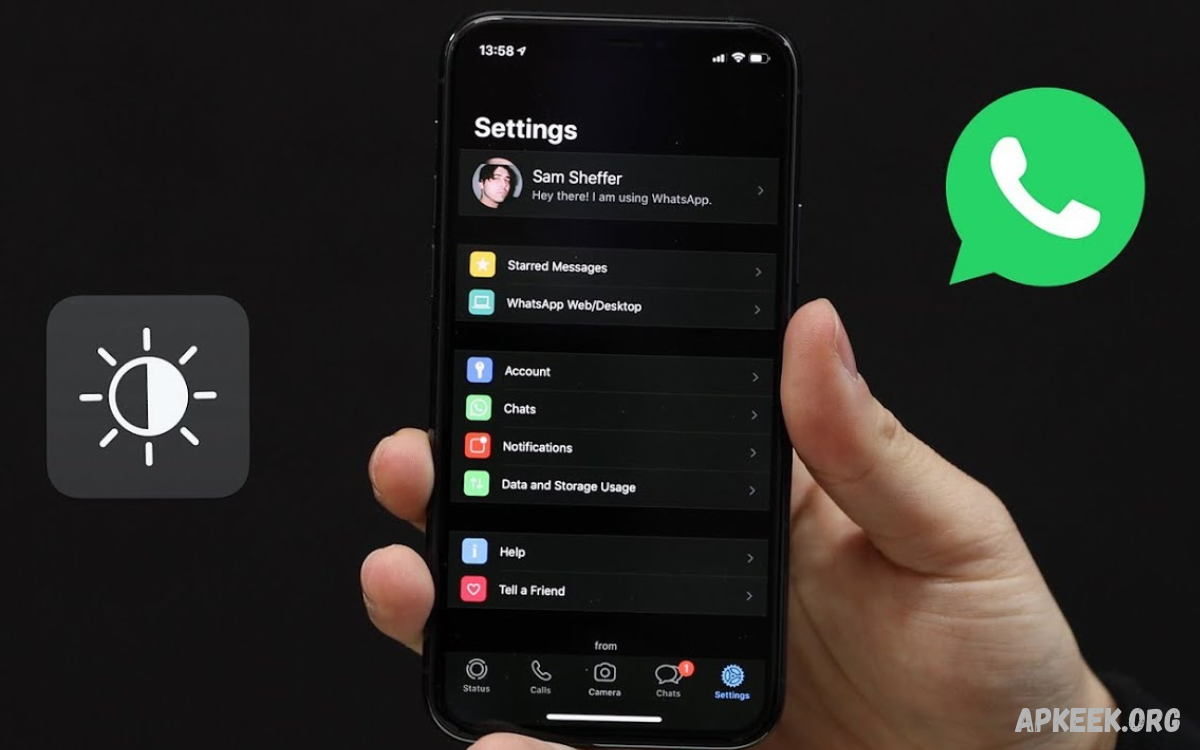
WhatsApp Dark Mode is a display feature that changes the app’s traditional light interface into a darker color scheme. Instead of bright backgrounds, users see dark panels, muted colors, and readable text designed for comfortable messaging in dim environments.
WhatsApp Dark Mode appeals to users who chat at night, spend long periods reading conversations, or prefer darker app designs.
What Is WhatsApp Dark Mode?
WhatsApp Dark Mode is an alternative interface theme that replaces the standard light background with dark shades. Chat lists, conversation screens, menus, and other supported areas adopt darker colors, while message bubbles and text maintain sufficient contrast for readability.
Dark Mode does not create a separate WhatsApp account or require a different messaging service. It changes the app’s appearance rather than its core functionality. Users can continue sending messages, sharing photos, making voice and video calls, managing groups, and accessing privacy settings as usual.
Key Features of WhatsApp Dark Mode
WhatsApp Dark Mode offers several visual improvements that make everyday messaging more flexible. Depending on the platform and software version, users may find dark backgrounds, contrasting message bubbles, themed menus, and options that follow the device’s system appearance.
The exact appearance may differ between Android, iOS, Windows, and macOS. Some devices offer automatic theme switching, while others depend on system settings or manual selection inside the application.
Dark Chat Backgrounds
Dark chat backgrounds reduce the amount of bright space displayed throughout a conversation. Instead of a predominantly white screen, users see a darker surface that makes messages stand out against the surrounding interface.
Users may also customize chat wallpapers where supported. A dark interface does not necessarily mean every wallpaper becomes black, so selecting a suitable image or solid background can help maintain visual consistency.
Improved Visual Contrast
WhatsApp Dark Mode uses lighter text and interface elements against darker surfaces. This contrast helps distinguish names, timestamps, message content, and navigation controls. The precise colors depend on the operating system, selected theme, and WhatsApp version.
Good contrast matters when reading long conversations or checking messages quickly. However, dark themes do not automatically improve readability for everyone. Some users may prefer light backgrounds, especially in bright sunlight or environments with strong ambient lighting.
System Theme Integration
Supported versions of WhatsApp can follow the device’s appearance settings. When system-level Dark Mode is enabled, WhatsApp may switch to its dark interface automatically. This option reduces the need to change the theme manually whenever lighting conditions or personal preferences change.
System integration also helps maintain a consistent appearance across compatible applications. Availability and behavior depend on the operating system, WhatsApp version, and selected theme settings, so users should check their device’s display options if automatic switching does not work.
Benefits of WhatsApp Dark Mode
One major benefit of WhatsApp Dark Mode is its suitability for low-light environments. A dark interface can feel less visually intense than a bright screen when messaging in the evening or at night.
Another benefit is personalization. Dark Mode gives WhatsApp a modern appearance and allows users to align the app with their preferred device theme. On compatible OLED and AMOLED displays, darker pixels can also reduce power consumption when much of the screen is genuinely black.
Reduced Screen Brightness in Dark Environments
A dark interface can make nighttime messaging more comfortable by reducing the amount of bright background displayed. This may be useful when checking messages in a dark room, particularly when a bright white screen feels distracting.
Dark mode does not replace proper screen brightness adjustment. Text can become difficult to read if brightness is too low, and individual visual preferences differ. Choosing a comfortable brightness level and taking regular breaks during extended screen use can support a better viewing experience.
Potential Battery Savings
Battery savings are most relevant on OLED and AMOLED displays, where individual pixels produce their own light. Black pixels can switch off or use very little power, depending on the display design.
LCD screens use a separate backlight, so dark interface colors generally do not provide the same pixel-level power savings. Battery performance also depends on mobile signal strength, screen brightness, background applications, calls, and other activities.
A Modern and Personalized Appearance
Many users choose WhatsApp Dark Mode simply because they prefer its appearance. Dark backgrounds, contrasting text, and darker menus create a streamlined interface that may complement a phone’s overall design.
Personal preference remains the most important factor when choosing a theme. Some users find dark interfaces elegant and comfortable, while others prefer the clarity of a light background. Trying both modes in different lighting conditions can help identify the most suitable option.
How to Enable WhatsApp Dark Mode on Android
Android users can usually enable WhatsApp Dark Mode directly through the application’s appearance settings. Open WhatsApp, tap the three-dot menu, select Settings, and look for Chats or Theme, depending on the version. Choose Dark to apply the darker interface immediately.
Some Android versions also support a system-controlled theme. Open the phone’s Settings app, navigate to Display or Display and Brightness, and enable the dark theme. If WhatsApp is configured to follow the system appearance, its interface should change accordingly.
Step-by-Step Android Setup
Start by opening WhatsApp and confirming that the app is updated. Tap the three-dot menu in the upper-right corner, open Settings, and select Chats.
If your WhatsApp version does not show a theme option, check your Android display settings. Enable the system-wide dark appearance and reopen WhatsApp. On some devices, the exact menu names vary because manufacturers customize Android settings.
How to Enable WhatsApp Dark Mode on iPhone
On iPhones, WhatsApp Dark Mode generally follows the iOS system appearance rather than providing the same independent theme selector found in many Android versions. Open Settings on the iPhone, select Display & Brightness, and choose Dark under Appearance.
Users can also access the appearance control through Control Center on compatible iPhones. Touch and hold the brightness slider, then select Dark Mode if the control is available. To return to the light interface, select Light in Display & Brightness or disable Dark Mode through the supported Control Center option.
Automatic Dark Mode on iPhone
iOS includes scheduling options that can automatically switch between light and dark appearances. Open Settings, choose Display & Brightness, and enable Automatic. Select Options to configure a schedule, such as sunset to sunrise or a custom time range, when those options are available.
WhatsApp can follow these system changes without requiring a manual theme adjustment each time. This is convenient for users who prefer a light interface during the day and a dark interface at night.
How to Use WhatsApp Dark Mode on Desktop
WhatsApp Desktop provides a convenient messaging experience for Windows and macOS users. Depending on the installed version, users can select an appearance preference within WhatsApp settings or follow the operating system’s theme.
Choose Dark if the option is available, then return to your chats to check the result. If your version offers a system default setting, selecting it allows WhatsApp to follow the computer’s appearance preferences.
How to Enable WhatsApp Dark Mode on WhatsApp Web
WhatsApp Web allows users to access conversations through a supported browser. To change its appearance, open WhatsApp Web and sign in using the supported device-linking process.
If the theme setting is missing, check whether the web interface has been updated and reload the page after changing any supported appearance preference.
WhatsApp Dark Mode vs. Light Mode
WhatsApp Dark Mode and Light Mode provide the same essential messaging functions, but their visual presentation differs. Dark Mode uses darker surfaces and lighter text, while Light Mode generally displays bright backgrounds with darker text.
Dark Mode can feel more comfortable in dim environments, while Light Mode may offer a familiar reading experience in bright surroundings. Neither theme guarantees better productivity or eye health for every user.
Read Also: How To Earn From YouTube Shorts 2026
How to Customize WhatsApp Dark Mode
WhatsApp offers several appearance-related settings that can complement Dark Mode. Depending on the device and version, users may be able to change chat wallpapers, adjust conversation colors, select chat-specific themes, or customize individual conversations.
Open WhatsApp settings and explore the Chats, Wallpaper, or Theme options available on your device. If individual chat themes are supported, open the relevant conversation and check its customization menu.
Choosing a Suitable Dark Wallpaper
A suitable wallpaper can improve the overall appearance of WhatsApp Dark Mode. Solid dark colors, subtle patterns, and low-contrast images may help keep conversations readable without distracting from message content.
Avoid wallpapers that make message text difficult to distinguish from the background. Bright images can create uneven visual contrast, particularly when message bubbles overlap detailed areas. Preview the wallpaper in an active conversation before applying it across multiple chats.
Chat Themes and Personalization
Supported WhatsApp versions may provide additional chat-theme controls, allowing users to customize conversation colors and message bubbles. These options can create a more personalized appearance while retaining the app’s familiar layout.
To explore the options, open a conversation and check its information or customization menu. If theme controls are unavailable, use the standard Dark Mode and supported wallpaper settings instead.
Common WhatsApp Dark Mode Problems and Solutions
WhatsApp Dark Mode usually works through the app’s theme settings or the operating system’s appearance controls. Problems can occur when the application is outdated, system settings conflict with the selected appearance, or a device applies a scheduled theme change.
If the interface remains light, restart WhatsApp and confirm the selected theme. On Android, review the app’s Chats or Theme settings; on iPhone, check the system appearance. Desktop and web users should review their version’s appearance controls and reload the application or page when appropriate.
WhatsApp Dark Mode Not Working
When WhatsApp Dark Mode does not activate, begin by updating the application through the official app store or desktop distribution channel. Next, verify the theme selection and restart the app.
If the issue continues, restart the device and check for operating system updates. Android users should avoid clearing app data unless they understand the consequences, because this can affect local application state.
WhatsApp Dark Mode Looks Too Bright
Some users find that Dark Mode still appears bright because the interface contains gray panels, colorful wallpapers, or bright media. Dark Mode does not necessarily make every element pure black.
Lower the screen brightness to a comfortable level and select a darker chat wallpaper if supported. You can also reduce surrounding light or use the device’s built-in accessibility settings when appropriate. Avoid extreme brightness reductions that make text difficult to read.
Dark Mode Changes Automatically
Automatic theme changes usually occur because the device follows a schedule or switches according to sunrise and sunset. On iPhone, review Settings under Display & Brightness. On Android, inspect Display or Dark theme settings and check whether a schedule is active.
If you prefer a consistent appearance, disable automatic switching and choose the desired theme manually where supported. On desktop devices, review both the operating system’s appearance settings and WhatsApp’s own preference.
Is WhatsApp Dark Mode Better for Your Eyes?
WhatsApp Dark Mode may feel more comfortable in dim surroundings because it reduces the amount of bright background displayed. However, its effect on eye comfort varies by person, lighting conditions, display quality, and text contrast.
For comfortable messaging, adjust screen brightness to match the room, use a readable text size, maintain a suitable viewing distance, and take regular breaks during long sessions.
Does WhatsApp Dark Mode Save Battery?
WhatsApp Dark Mode can reduce power consumption on phones with OLED or AMOLED displays when darker pixels replace brighter content. The potential savings depend on how much of the interface is dark, the screen brightness, and the amount of time WhatsApp remains visible.
On LCD screens, a backlight illuminates the display regardless of individual pixel color, so dark themes generally provide less direct battery benefit. Background activity, mobile data use, calls, and screen brightness also affect battery life.
WhatsApp Dark Mode Privacy and Security
WhatsApp Dark Mode is an appearance feature, not a privacy or security setting. Enabling it does not automatically change end-to-end encryption, block unwanted contacts, hide online status, or prevent screenshots.
For better account protection, enable two-step verification, secure the phone with a strong screen lock, review linked devices, and never share verification codes with strangers.
Frequently Asked Questions
What Is WhatsApp Dark Mode?
WhatsApp Dark Mode is an alternative interface theme that replaces the standard bright appearance with darker backgrounds and lighter text. It changes the visual presentation while keeping messaging, calling, and other supported features available.
How Do I Enable WhatsApp Dark Mode on Android?
Open WhatsApp, tap the three-dot menu, and select Settings, followed by Chats and Theme if available. Choose Dark. If your version does not provide this option, check the Android system’s Dark theme settings.
How Do I Enable WhatsApp Dark Mode on iPhone?
Open iPhone Settings, select Display & Brightness, and choose Dark under Appearance. WhatsApp generally follows the iOS appearance setting on supported versions.
Does WhatsApp Dark Mode Save Battery?
It can save battery on OLED and AMOLED displays, particularly when the interface contains large dark areas. Battery savings are usually less significant on LCD screens and vary with brightness and usage.
Can I Schedule WhatsApp Dark Mode?
Yes, when your device supports automatic appearance scheduling and WhatsApp follows the system theme. Configure the schedule through your phone’s display settings, such as sunset-to-sunrise switching or a custom time range.
Can I Use WhatsApp Dark Mode on a Computer?
Yes. Supported WhatsApp Desktop versions offer appearance options or follow the computer’s system theme. Open the application settings and check for a theme or appearance control.
Why Is WhatsApp Dark Mode Not Working?
Possible causes include outdated software, an incorrect theme selection, or conflicting system appearance settings. Update WhatsApp, verify your theme preferences, and restart the application.
Does WhatsApp Dark Mode Improve Eye Comfort?
It may feel more comfortable in low-light environments, but individual experiences vary. Proper screen brightness, readable text, suitable contrast, and regular breaks remain important.
Can I Change WhatsApp Dark Mode Wallpaper?
Yes, WhatsApp supports chat wallpaper customization, with available options varying by platform and version. Choose a darker wallpaper with sufficient contrast to keep messages easy to read.
Is WhatsApp Dark Mode Safe to Use?
Yes. Dark Mode is a standard appearance feature and does not inherently reduce account security. For better protection, use official WhatsApp software, enable two-step verification, and review linked devices regularly.
Conclusion
WhatsApp Dark Mode provides an alternative interface for users who prefer darker backgrounds, especially during evening messaging and low-light use.
Enabling WhatsApp Dark Mode is straightforward on most supported Android phones, iPhones, desktop computers, and web versions, although the exact steps vary.
