

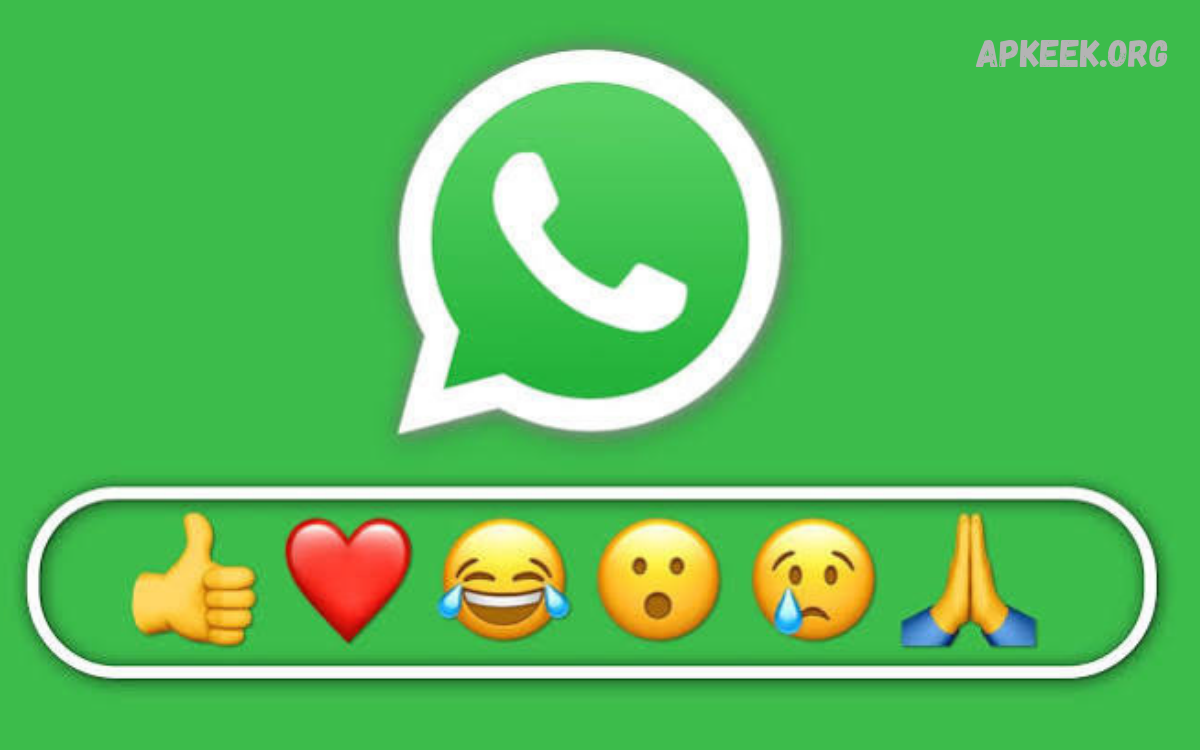
WhatsApp Message Reactions make conversations faster, easier, and more expressive. This feature lets users respond to individual messages with emojis instead of typing a full reply.
WhatsApp Message Reactions also help keep conversations organized. Rather than sending several short messages, users can express appreciation, agreement, excitement, surprise, or other emotions directly on a message. This makes personal chats, group discussions, and professional conversations more convenient.
What Are WhatsApp Message Reactions?
WhatsApp Message Reactions are an interactive messaging feature that allows users to respond to messages with emojis. Instead of writing a separate response, users can select an emoji and attach it directly to a particular message.
For example, someone sharing good news might receive a heart or celebration reaction. A funny message could receive a laughing emoji, while an important update might receive a thumbs-up. These reactions provide a simple way to communicate feelings without creating additional messages.
Why WhatsApp Message Reactions Are Useful
WhatsApp Message Reactions reduce unnecessary messages and make conversations easier to follow. In busy group chats, dozens of people might respond to the same announcement. Instead of sending individual replies, members can use reactions to acknowledge or show appreciation.
Another advantage involves communication speed. Selecting an emoji usually takes less time than writing a complete sentence. This makes reactions useful when someone wants to respond quickly but does not need to start another conversation.
How WhatsApp Message Reactions Work
WhatsApp Message Reactions connect an emoji response directly to an existing message. When someone selects an emoji, it appears beneath or beside the original message, depending on the device and interface.
Other participants can see the reaction in the conversation. In group chats, multiple members can react to the same message, creating a collection of responses. This makes it easier to understand the group’s overall reaction to announcements, questions, and shared content.
How to Use WhatsApp Message Reactions on Android
Android users can react to messages with a simple long-press. Open WhatsApp, enter an individual or group conversation, and find the message you want to acknowledge. Press and hold the message until the emoji reaction bar appears.
Choose an emoji from the available options to attach your reaction. If the displayed emojis do not match your preferred response, select the plus (+) option to open the emoji picker. Find an appropriate emoji and tap it to complete your reaction.
How to Use WhatsApp Message Reactions on iPhone
The iPhone process is similar to the Android method. Open WhatsApp, select a conversation, and locate the message you want to react to. Touch and hold the message until the reaction options appear above or near the selected message.
Select an emoji to send your reaction instantly. You can also use the additional emoji option to find another expression. The selected reaction will appear alongside the original message, allowing other participants to understand your response without reading another text message.
How to Use WhatsApp Message Reactions on Web
WhatsApp Web allows users to manage conversations through a computer browser. Message reactions are available in this version, making communication easier for people who prefer typing and managing chats on a larger screen.
Move your mouse pointer over the message you want to react to. Click the emoji icon that appears near the message, then select your preferred reaction. You can also access additional emojis through the plus option when the default selection does not match your response.
How to Use WhatsApp Message Reactions on Desktop
WhatsApp Desktop provides a messaging experience through a computer application. Its reaction feature works similarly to WhatsApp Web, allowing users to respond to messages without opening the emoji keyboard for every interaction.
Open a conversation and move the cursor over the selected message. Click the reaction icon, choose an emoji, and wait for it to appear beneath the message. If the reaction options do not appear, check whether the desktop application needs an update.
How to Change WhatsApp Message Reactions
Sometimes users select an emoji accidentally or change their minds after reacting. WhatsApp allows users to replace an existing reaction with another emoji. This option helps maintain accurate communication without sending an additional message to explain the correction.
To change a reaction on Android or iPhone, press and hold the message containing your existing reaction. Select a different emoji from the reaction bar or open the complete emoji picker. Your previous reaction will be replaced with the newly selected option.
How to Remove WhatsApp Message Reactions
Removing an unwanted reaction is another useful feature. If you react to a message accidentally, you do not need to delete the original message or send another message to correct your response. WhatsApp provides a direct option for removing your emoji reaction.
Open the conversation and locate the message containing your reaction. Tap the reaction you previously selected, or open the reaction options and select your existing emoji again. Your reaction should disappear from the message. WhatsApp does not send a separate notification when you remove a reaction, although the recipient might have already seen it.
How to React to WhatsApp Group Messages
Group conversations are among the most useful places for WhatsApp Message Reactions. Large groups often contain announcements, questions, photographs, and discussions that receive responses from many members. Reactions allow participants to acknowledge these messages without filling the conversation with repeated replies.
For example, a group administrator might share an important update. Members can select a thumbs-up reaction to show acknowledgment, while a celebration emoji can express excitement about good news. Different members can add their own reactions to the same message, making group discussions easier to follow.
How to See Who Reacted to a WhatsApp Message
WhatsApp lets users see who reacted to a particular message. This feature is especially helpful in group conversations where several participants might select different emojis. Instead of guessing who responded, users can open the reaction details.
Tap the emoji reactions displayed beneath a message. WhatsApp will show the available reaction information, including the participants associated with each emoji. Depending on the conversation and app version, users can view reactions together or select individual emoji categories to understand the responses.
How to React to WhatsApp Photos and Videos
WhatsApp Message Reactions are not limited to ordinary text messages. Users can also react to shared photographs, GIFs, and videos. This makes conversations more expressive because people can acknowledge visual content without typing a separate comment.
Open the conversation containing the photograph or video you want to acknowledge. Press and hold the media message, then select an emoji from the available reaction options. You can also open the media viewer and use the displayed reaction controls when supported by your version of WhatsApp.
How to React to WhatsApp Voice Messages
Voice messages provide a convenient way to communicate when typing is difficult or unnecessary. However, responding to every audio message with written text can make conversations longer. WhatsApp Message Reactions provide a simpler way to acknowledge an audio message.
Find the voice message in your conversation and use the message reaction controls. Select an emoji that represents your response. For example, a thumbs-up can indicate that you received the information, while a heart can express appreciation for a thoughtful message.
How to Use Different Emojis for WhatsApp Reactions
WhatsApp offers several emoji options to express different emotions. Common reactions include thumbs-up, heart, laughter, surprise, sadness, and folded hands. These options cover many everyday communication situations and help users express their feelings quickly.
Users can also access additional emojis through the plus option in the reaction picker. This provides more flexibility when the default choices don’t convey the intended feeling. Selecting an appropriate emoji helps prevent misunderstandings and makes digital conversations more natural.
Understanding Popular WhatsApp Message Reaction Emojis
Each emoji can communicate a different feeling depending on the conversation. Understanding common meanings helps users choose reactions that match the message. Although people sometimes use emojis differently, certain expressions have widely recognized meanings.
Here are some popular reactions and their common uses:
- 👍 Thumbs Up: Agreement, approval, or acknowledgment.
- ❤️ Red Heart: Love, appreciation, or affection.
- 😂 Laughing Face: Humor, amusement, or something funny.
- 😮 Surprised Face: Astonishment, excitement, or unexpected news.
- 😢 Crying Face: Sympathy, sadness, or disappointment.
- 🙏 Folded Hands: Thanks, appreciation, or a polite request.
- 🎉 Party Popper: Celebration, achievement, or good news.
- 👏 Clapping Hands: Congratulations, recognition, or encouragement.
Choosing the right emoji depends on the message and relationship between participants. A professional conversation might require a simple thumbs-up, while a personal discussion could benefit from a heart or celebration reaction.
WhatsApp Message Reaction Notifications
Notifications help users stay informed when someone reacts to their messages. When another participant selects an emoji for your message, WhatsApp can send a reaction notification. This makes it easier to notice responses without constantly opening every conversation.
Users can manage reaction notifications through WhatsApp settings. Open Settings, select Notifications, and look for Reaction Notifications under individual message or group notification settings. Depending on your preferences, you can enable or disable these alerts.
Read Also: Digital Product Selling Guide: How to Create, Market, and Sell Digital Products Online
How to Turn Off WhatsApp Reaction Notifications
Some users receive reactions frequently, especially when participating in active group conversations. Too many alerts can be distracting, so WhatsApp provides notification controls to manage reaction alerts separately from other messaging notifications.
Open WhatsApp and navigate to Settings. Select Notifications and find the Reaction Notifications option. You can manage notifications for individual chats and groups separately. Turning off these alerts does not remove existing reactions or prevent other participants from reacting to your messages.
Can You Use Multiple WhatsApp Message Reactions?
WhatsApp allows multiple participants to react to the same message, particularly in group conversations. For example, one person might choose a heart, another might select a thumbs-up, and someone else might use a laughing emoji. All these reactions can appear together beneath the original message.
However, each participant can add only one active reaction to a particular message at a time. If someone chooses another emoji, the previous reaction is replaced. This system keeps reactions organized while allowing everyone in a group to express an individual response.
Can You React to Disappearing Messages?
WhatsApp includes disappearing messages for conversations where users prefer messages to remain available for a limited period. Reactions can also be added to these messages while they remain visible in the conversation.
An important detail is that reactions connected to disappearing messages also disappear when the original message disappears. Therefore, users should not expect these reactions to remain permanently available.
Can You Hide WhatsApp Message Reactions?
WhatsApp displays reactions beneath the messages receiving them. These emojis help participants understand how others responded to particular content. However, users may prefer a cleaner conversation without visible reaction indicators.
WhatsApp does not currently offer a general setting to hide reactions or reaction counts. Disabling reaction notifications can reduce alerts, but it does not remove the visible reactions from conversations. Users should understand the difference between notification controls and reaction visibility.
WhatsApp Message Reactions for Personal Conversations
Personal conversations often involve photographs, family updates, invitations, questions, and everyday discussions. Reactions provide a convenient way to respond without interrupting the conversation with unnecessary text.
For example, someone sharing an achievement might appreciate a celebration emoji, while a simple thumbs-up can acknowledge an ordinary update. A heart reaction can communicate appreciation when someone shares something meaningful.
WhatsApp Message Reactions for Business Communication
WhatsApp is also used for customer communication, business discussions, and team coordination. Message reactions can help participants acknowledge updates, confirm theyhave seen information, or show appreciation for shared content.
For example, a team member might share a completed task or an important announcement. Other participants can use a thumbs-up reaction to indicate acknowledgment.
Common Problems With WhatsApp Message Reactions
Sometimes users cannot access reaction options or notice that their selected emoji does not appear. These problems can happen because of outdated applications, temporary connection issues, device problems, or software interruptions.
Understanding common causes makes troubleshooting easier. Before changing advanced settings, check the application version, internet connection, and device performance. Simple maintenance steps can resolve many temporary problems without affecting existing conversations.
Why WhatsApp Message Reactions May Not Work
Several issues can prevent reactions from working correctly. An outdated application might not display the latest interface, while an unstable internet connection can interrupt communication between the device and WhatsApp servers.
Other possible reasons include temporary application errors, limited device storage, or software compatibility problems. If reactions stop working, restart WhatsApp, check your connection, and install available updates through your device’s official application store.
Tips for Using WhatsApp Message Reactions Properly
Using reactions effectively requires understanding the context of a conversation. An emoji that feels appropriate among friends might appear confusing in a professional discussion. Choosing reactions carefully helps keep communication respectful and clear.
Consider the following suggestions:
- Use thumbs-up for simple acknowledgment.
- Choose hearts when expressing appreciation or affection.
- Use laughter for genuinely humorous messages.
- Select celebration emojis for achievements and special occasions.
- Avoid confusing emojis in professional conversations.
- Send a written reply when detailed information is necessary.
- Consider the recipient’s feelings before reacting to sensitive messages.
These practices make WhatsApp Message Reactions more useful. They also reduce misunderstandings and support better communication across different types of conversations.
Privacy and Safety of WhatsApp Message Reactions
Privacy is an important part of digital communication. WhatsApp Message Reactions are attached to specific messages, allowing participants in a conversation to see the responses. Users should remember that reactions are visible to people who can access the relevant chat.
Avoid using reactions carelessly when discussing private or sensitive subjects. A simple emoji can sometimes communicate a different meaning than intended. Consider the context, the recipient, and the nature of the conversation before selecting a reaction.
How to Troubleshoot Reaction Problems
If WhatsApp Message Reactions are not working, begin with basic troubleshooting. Check your internet connection, close and reopen the app, and make sure your device has enough storage space. These steps can help resolve temporary application problems.
If the issue continues, check for WhatsApp updates and restart your device. You can also review notification settings if reaction alerts are missing. Remember that notification problems and reaction problems are different, so identify the specific issue before changing settings.
Frequently Asked Questions
What Are WhatsApp Message Reactions?
WhatsApp Message Reactions allow users to respond to individual messages with emojis. They provide a quick alternative to typing a separate reply and make conversations more expressive.
How Do I React to a WhatsApp Message?
Open a conversation and press and hold the message you want to react to. Select an emoji from the available options to attach your reaction.
Can I Change My WhatsApp Message Reaction?
Yes. Press and hold the message containing your existing reaction and select another emoji. WhatsApp replaces your previous reaction with the newly selected one.
How Do I Remove a WhatsApp Message Reaction?
Find the message containing your reaction and tap your selected emoji again. WhatsApp removes your reaction without sending a separate removal notification.
Can I Use WhatsApp Message Reactions in Group Chats?
Yes. Users can react to messages in individual chats, groups, and communities. Multiple participants can add different reactions to the same message.
Can I Use Any Emoji for WhatsApp Reactions?
Yes. WhatsApp provides additional emoji choices through the plus option in the reaction picker. The available selection can depend on the application version and device.
Does WhatsApp Notify Users About Reactions?
WhatsApp can notify the sender when someone reacts to their message. Users can manage reaction notification preferences through the Notifications settings.
Can I React to WhatsApp Photos and Videos?
Yes. Users can react to supported photos, GIFs, and videos shared in conversations. Select the media message and open its reaction options.
Can I Add Multiple Reactions to One Message?
Each participant can have one active reaction per message. However, different participants can select different emojis, allowing multiple reactions to appear together.
Do WhatsApp Reactions Disappear With Disappearing Messages?
Yes. Reactions attached to disappearing messages also disappear when the original message disappears from the conversation.
Conclusion
WhatsApp Message Reactions have made everyday messaging more convenient, expressive, and organized. Users can acknowledge messages, express emotions, celebrate achievements, and respond to shared content without sending unnecessary text.
Understanding how to add, change, and remove reactions helps users make better use of this feature. Whether on Android, iPhone, WhatsApp Web, or Desktop, reactions provide a simple way to communicate in personal and group conversations.
