

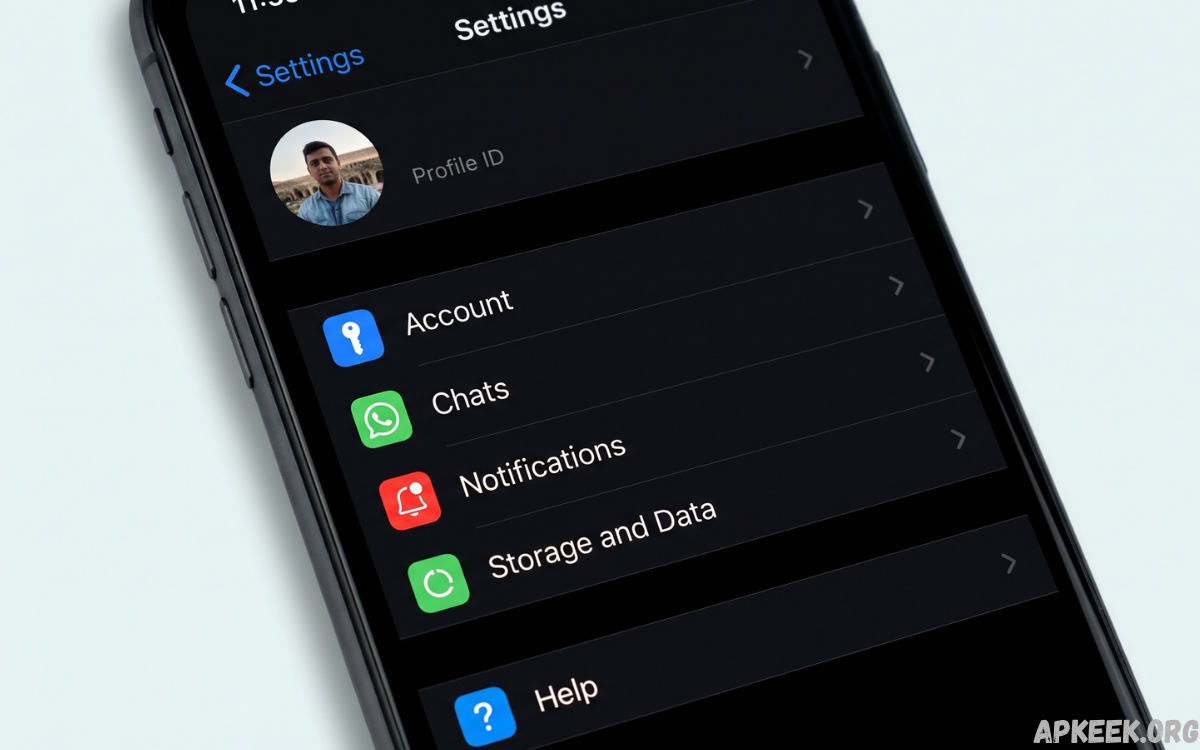
WhatsApp settings give you full control over privacy, security, chats, notifications, storage, media, calls, account preferences, and connected devices. Understanding these options helps users create a safer, cleaner, and more personalized WhatsApp experience.
Whether you use WhatsApp for personal conversations, business communication, family groups, or daily messaging, the right settings can improve account security and reduce unwanted interruptions. This complete guide explains key WhatsApp settings and shows how to configure each category effectively.
What Are WhatsApp Settings?
WhatsApp settings are the central control area where users can manage how the application behaves. These options cover account information, privacy controls, security features, chat preferences, notifications, storage usage, accessibility, and linked devices.
The Settings menu also includes tools to manage profile visibility, two-step verification, disappearing messages, blocked contacts, media downloads, backups, and connected devices. Reviewing these controls regularly can help keep your account organized and protected.
How to Open WhatsApp Settings
Opening WhatsApp Settings is straightforward on most smartphones. On Android, launch WhatsApp, tap the three-dot menu in the upper-right corner, then select Settings. The available categories appear on the following screen.
On iPhone, open WhatsApp and select Settings from the bottom navigation menu. Although the interface differs slightly between Android and iOS, the primary controls remain similar. Some features may vary by WhatsApp version and operating system.
WhatsApp Privacy Settings
Privacy settings are among the most important WhatsApp settings because they determine who can access certain information connected to your profile. Users can control the visibility of profile photos, About information, status updates, last seen information, and other personal details.
WhatsApp generally provides options such as Everyone, My Contacts, My Contacts Except, and Nobody for supported privacy controls. Choosing a more restrictive option can reduce exposure to unknown people while maintaining normal communication with trusted contacts.
Last Seen and Online Settings
The Last Seen setting controls who can view the most recent time you were active on WhatsApp. Depending on your privacy preferences, you can limit this information to contacts, exclude selected people, or prevent others from seeing it completely.
The online setting can also determine who can see when you are currently using WhatsApp. Combining restrictive Last Seen and Online settings gives users more privacy if they prefer not to reveal their activity patterns.
Profile Photo Privacy
Your WhatsApp profile photo is visible according to the privacy option you select. Users who want greater privacy can limit profile photo visibility to saved contacts or prevent other people from viewing it.
This setting is especially useful for users who frequently receive messages from unknown numbers. Restricting profile photo visibility can reduce unnecessary exposure of personal images and help maintain a more private digital identity.
About Privacy Settings
The About section allows users to display a short profile description. WhatsApp Settings let you control who can view this information, depending on the privacy options available in your current app version.
A private About setting can be useful when your profile includes personal information, contact details, workplace information, or other details you don’t want broadly accessible. Keep profile information minimal when privacy is a priority.
WhatsApp Status Privacy
WhatsApp Status allows users to share photos, videos, text, GIFs, and other updates with selected audiences. Status privacy controls determine which contacts can view these updates.
Users can normally choose a broad audience or exclude specific contacts from seeing status updates. Careful audience selection matters when sharing family moments, personal information, travel updates, or work-related content.
WhatsApp Group Privacy Settings
Group privacy controls help determine who can add you to WhatsApp groups. Depending on the available options, users may allow everyone to add them or restrict invitations to contacts.
Restricting group invitations can reduce unwanted additions to promotional, spam, or unfamiliar groups. If someone can’t add you directly because of your privacy settings, WhatsApp can send an invitation through a private chat instead.
WhatsApp Settings for Blocked Contacts
The blocked contacts section lets users review and manage blocked numbers. Blocking prevents unwanted communication from selected accounts through WhatsApp.
Users can block accounts that send spam, harassment, suspicious links, or unwanted messages. Reviewing the blocked list occasionally can also help maintain an accurate record of contacts whose communication you no longer want to receive.
WhatsApp Security Settings
Security settings help protect your account against unauthorized access and suspicious activity. WhatsApp uses several security mechanisms, including end-to-end encryption for personal messages and calls.
Users should also review two-step verification, linked devices, and account-related security notifications. Strong security settings are particularly important when WhatsApp is used for financial discussions, business communication, private conversations, or sensitive information.
Two-Step Verification
Two-step verification adds an additional layer of account protection. After enabling this feature, WhatsApp requires a PIN during certain account verification processes.
Users should create a PIN that is difficult for others to guess and avoid sharing it with anyone. An email address can also help with account recovery where supported, so keep recovery information secure and accessible.
End-to-End Encryption
End-to-end encryption protects the content of personal WhatsApp messages and calls while they are transmitted between participants. The principle is that the communication is encrypted so unauthorized parties can’t read messages during transmission.
WhatsApp also provides security-related options that can help users understand encryption and protect conversations. Users should still avoid sharing passwords, verification codes, financial credentials, or other highly sensitive information through untrusted channels.
Security Notifications
Security notifications can inform users when a contact’s security code changes. These changes can occur when someone reinstalls WhatsApp, changes devices, or performs certain account-related actions.
Keeping security notifications enabled can provide additional awareness about changes involving encrypted conversations. Users handling sensitive communication can verify important changes with the contact through another trusted communication method.
WhatsApp Chat Settings
Chat settings control how conversations look, behave, and store information. Users can manage themes, wallpapers, chat history, media visibility, message-related options, and other conversation preferences.
Well-configured chat settings make WhatsApp easier to use, especially for people managing numerous personal and group conversations. Regularly organizing chats can also reduce clutter and make important messages easier to find.
Default Message Timer
The default message timer allows users to set disappearing messages for new chats where the feature is supported. Messages can automatically disappear after a selected period.
This option can be useful for conversations where long-term message storage is unnecessary. However, disappearing messages are not a complete privacy solution, as recipients may still preserve information through screenshots, photos, forwarding, or other methods.
Disappearing Messages in Individual Chats
You can also enable disappearing messages for specific conversations. When activated, messages disappear after the selected duration and in line with applicable WhatsApp rules.
This feature works well for temporary conversations, short-term plans, reminders, and information that does not need permanent storage. Users should understand the available duration options and limitations before relying on disappearing messages for privacy.
WhatsApp Chat Backup Settings
Chat backup settings let users save WhatsApp conversation data based on their device and cloud-storage configuration. Android and iPhone devices use different backup ecosystems.
A regular backup can protect important conversations when changing phones, reinstalling WhatsApp, or recovering data after device problems. Users should review backup frequency, account selection, included videos, and encryption options where available.
End-to-End Encrypted Backups
WhatsApp supports end-to-end encrypted backups for users who choose to enable the feature. This adds another layer of protection to stored backup information.
When encrypted backups are enabled, users must carefully protect the password or encryption key associated with the backup. Losing the required recovery information can make the encrypted backup inaccessible, so secure storage is essential.
WhatsApp Notification Settings
Notification settings determine how WhatsApp alerts you about incoming messages, group activity, calls, and other events. Users can configure notification behavior according to their communication habits.
Customizing notifications can reduce interruptions while keeping important alerts visible. Users in many active groups can especially benefit from controlling sounds, vibration, previews, and notification behavior.
Message Notification Controls
Message notifications provide alerts when someone sends a direct WhatsApp message. Depending on your device, you can modify sound, vibration, banner, lock-screen visibility, and other notification behavior.
Reducing unnecessary notification intensity can make WhatsApp less distracting. When Android or iOS supports it, device-level notification controls can give important contacts priority treatment.
Group Notification Controls
Group chats can generate frequent notifications, particularly when hundreds or thousands of messages are exchanged. WhatsApp lets you mute group notifications for selected periods.
Muting a busy group usually doesn’t prevent you from reading new messages. Instead, it reduces interruptions while letting you open the group when convenient and review the latest conversation.
Call Notification Settings
WhatsApp call notifications alert users when someone attempts to make a voice or video call. Device-level controls can influence how these alerts appear.
Users who receive frequent unwanted calls should also review WhatsApp call privacy options. Features that silence calls from unknown numbers can reduce interruptions while keeping call information available in the app.
Silence Unknown Callers
The Silence Unknown Callers feature can help reduce interruptions from people you don’t know. When enabled, qualifying calls from unknown numbers may not ring as usual.
Silenced calls can still appear in the call list and notifications, depending on WhatsApp behavior. This makes the feature useful for users who want to reduce spam and unwanted calls without completely losing call records.
WhatsApp Storage Settings
Storage settings show how much space WhatsApp content occupies on your device. Large videos, forwarded media, documents, voice messages, and images can gradually consume significant storage.
The storage management area can help users identify large files and heavily used chats. Regularly removing unnecessary media can free up device space while preserving important conversations and files.
Manage WhatsApp Storage
WhatsApp’s storage management tools can help identify large files and frequently shared media. Users can review content before deleting it, making it easier to remove unnecessary items without clearing valuable information.
A practical storage routine involves reviewing large videos, duplicate media, old documents, and heavily active group conversations. Back up important files before deleting them, in case you need them later.
Automatic Media Download Settings
Automatic media download controls determine when WhatsApp downloads photos, audio, videos, and documents using mobile data, Wi-Fi, or roaming connections.
Disabling automatic downloads for certain media types can reduce mobile data consumption and prevent unwanted files from filling storage. Users with limited data packages should review these settings carefully.
Media Visibility Settings
Media visibility determines whether newly downloaded WhatsApp media appears in the device’s gallery or photo application, depending on the operating system.
Turning media visibility off can keep WhatsApp images and videos separate from personal camera photos. This is particularly useful for users who participate in large groups that frequently share memes, promotional images, screenshots, or unrelated videos.
WhatsApp Data and Storage Usage
WhatsApp Settings include information about network usage, helping users understand how much data the application consumes. Messaging generally requires little data, while video calls and media downloads can use considerably more.
Users with limited mobile data can reduce consumption by controlling automatic downloads and avoiding unnecessary high-bandwidth activity. When practical, Wi-Fi is better for large media transfers.
WhatsApp Proxy Settings
WhatsApp provides proxy-related functionality for certain situations where direct access to WhatsApp services may be disrupted. A proxy can act as an intermediary between the WhatsApp application and its service infrastructure.
Users should only use trusted proxy information from reliable sources. An unfamiliar proxy configuration can create connectivity problems or introduce unnecessary privacy concerns, so users should understand why a proxy is required before enabling one.
Linked Devices Settings
Linked Devices allows users to connect WhatsApp to compatible computers, browsers, tablets, and other supported devices. This lets users continue conversations across multiple devices.
Users should review the Linked Devices section regularly and remove sessions they no longer recognize or use. Leaving an unfamiliar device connected can give someone else access to WhatsApp conversations associated with that session.
How to Log Out From Linked Devices
When a device is no longer needed, users can open Linked Devices, select the relevant session, and choose the logout option. This removes that linked session from the account.
Logging out of old computers is especially important when using WhatsApp on public, shared, office, school, or temporary devices. Always review active sessions after using WhatsApp Web on a computer that you do not personally control.
WhatsApp Profile Settings
Profile settings let users manage their name, profile photo, about information, and other identity-related details. A clear profile can help contacts recognize the correct account.
Avoid placing unnecessary personal information in the profile name or About section. A professional WhatsApp account may benefit from a simple name and relevant description, while personal accounts can use minimal information for greater privacy.
Read Also: WhatsApp APK: Latest Version
WhatsApp Account Settings
Account settings include important controls for account management, privacy, security, and related functions. Users should review these options carefully rather than changing settings without understanding their purpose.
Account management can include phone-number-related controls, security features, account information requests, and deletion options. Before making major changes, users should understand how the change could affect conversations, backups, devices, and account access.
Change WhatsApp Phone Number
WhatsApp provides a Change Number feature for users moving their account from one phone number to another. The process transfers account information to the new number according to WhatsApp’s applicable rules.
Before changing a number, verify that the new number can receive the required verification code. Inform important contacts when necessary and review linked devices and privacy settings after completing the migration.
Delete WhatsApp Account
The account deletion option permanently removes your WhatsApp account through the app’s deletion process. This is different from simply uninstalling the application from a phone.
Before deleting an account, users should consider important conversations, backups, groups, business information, and media. Account deletion can have permanent consequences, so users should proceed only after confirming they no longer need the account.
WhatsApp Accessibility Settings
Accessibility options can make WhatsApp easier to use for people with different visual, hearing, mobility, or interaction requirements. Some accessibility behavior also depends on the operating system.
Users can combine WhatsApp’s available options with Android or iPhone accessibility features. Larger text, screen readers, contrast adjustments, voice controls, and other system features can improve the overall messaging experience.
WhatsApp Theme and Appearance Settings
WhatsApp supports appearance customization, including light and dark interface options where available. Dark mode can create a more comfortable viewing experience in low-light environments.
The best theme depends on personal preference, screen technology, lighting conditions, and device settings. Users who prefer automatic appearance changes can also use system-level settings when their device supports them.
WhatsApp Wallpaper Settings
Wallpaper settings let users customize the background displayed in conversations. Users can select different backgrounds according to personal preference.
Separate visual choices can make chats easier to distinguish, although excessive customization may reduce consistency. A simple, low-contrast wallpaper usually provides a clean background that keeps message text readable.
WhatsApp Language Settings
Language preferences vary by WhatsApp and device support. Depending on the platform and version, users may be able to change the app language through WhatsApp or the operating system.
Selecting a familiar language can make settings easier to understand and reduce configuration mistakes. Users should always understand important security and privacy options before changing them.
WhatsApp Settings for Business Users
Business users can benefit from reviewing WhatsApp settings alongside WhatsApp Business features. Professional communication requires careful control over profile information, notifications, linked devices, backups, and privacy.
Businesses should also establish internal policies for account access, device security, backup management, and employee usage. A professional WhatsApp setup should minimize unnecessary exposure while maintaining reliable communication with customers.
WhatsApp Settings for Privacy Protection
Strong privacy settings start with limiting unnecessary profile visibility and controlling who can contact you or add you to groups. Users should also review visibility for Status, Last Seen, Online, Profile Photo, and About.
Privacy protection also requires careful behavior outside the Settings menu. Avoid sharing verification codes, suspicious links, passwords, financial credentials, or sensitive personal information with unknown contacts, even when a message appears convincing.
WhatsApp Settings for Account Security
Account security should include two-step verification, regular Linked Devices reviews, strong device authentication, and careful management of verification codes. These controls create multiple barriers against unauthorized account access.
Never share a WhatsApp verification code with another person. If someone requests a code claiming to be WhatsApp support, a friend, a business representative, or another trusted person, treat the request as suspicious and verify the situation independently.
Best WhatsApp Settings for Everyday Users
For most users, a balanced configuration includes restricted profile visibility, controlled group invitations, two-step verification, encrypted backups, regular device reviews, and sensible notification settings.
You can also limit automatic media downloads to reduce storage and data usage. Together, these settings create a more private, less distracting, and easier-to-manage WhatsApp environment.
WhatsApp Settings for Reducing Spam
Spam reduction starts with limiting who can add you to groups and using blocking and reporting tools when necessary. Silencing unknown callers can also reduce unwanted call interruptions.
Users should avoid interacting with suspicious promotional messages, fake prize notifications, investment offers, login alerts, and unknown links. Reporting suspicious accounts helps WhatsApp identify potentially abusive behavior, while blocking prevents further direct interaction.
WhatsApp Settings for Better Battery Life
WhatsApp battery consumption depends on usage patterns, background activity, calls, media downloads, notifications, and device configuration. Reducing unnecessary automatic downloads can help lower background activity.
Users can also review Android or iPhone battery settings to understand WhatsApp’s resource usage. Limit unnecessary background permissions carefully, as aggressive restrictions can delay notifications or affect normal app behavior.
WhatsApp Settings for Better Storage Management
Storage management is easier when users prevent unnecessary media from automatically downloading and appearing in the device gallery. Large group chats deserve special attention because they can generate large amounts of media.
Regularly reviewing the WhatsApp storage section helps you identify the content taking up the most space. Delete files you no longer need while keeping important documents, family photos, business records, and other valuable media in a secure location.
Common WhatsApp Settings Mistakes
One common mistake is leaving every privacy option at its broadest setting without reviewing who can see personal information. Another mistake is keeping old linked devices active after using WhatsApp on another person’s computer.
Users may also overlook two-step verification, encrypted backups, automatic media downloads, and unknown-call controls. A quick settings review every few months can identify outdated preferences and improve overall account management.
How Often Should You Review WhatsApp Settings?
A complete WhatsApp settings review every few months is a sensible routine. Users should also check settings immediately after changing phones, reinstalling WhatsApp, changing phone numbers, or connecting a new computer.
Security-related settings deserve more attention than cosmetic preferences. Keep two-step verification, linked devices, privacy controls, backups, and account recovery information accurate and properly configured.
Frequently Asked Questions
Can I make WhatsApp more private?
Yes. You can improve privacy by restricting Last Seen, Online, profile photo, About, Status, and group-related visibility. You can also block unwanted contacts and silence unknown callers.
Where can I find WhatsApp settings?
On Android, open WhatsApp, select the three-dot menu, then choose Settings. On iPhone, open WhatsApp and select Settings from the application interface.
Should I enable two-step verification?
Yes. Two-step verification provides an additional layer of account protection and is recommended for users who want stronger security.
How can I stop unknown WhatsApp calls?
You can use the Silence Unknown Callers feature where available. This reduces interruptions from calls made by unknown numbers while preserving relevant call information.
How can I reduce WhatsApp storage usage?
Review WhatsApp’s storage management tools, delete unnecessary large files, limit automatic media downloads, and review active group chats that frequently share media.
Can I hide my WhatsApp profile photo?
Yes. WhatsApp privacy controls let you choose who can view your profile photo, based on the available audience options.
Can I stop people from adding me to WhatsApp groups?
WhatsApp provides group privacy controls that can restrict who can directly add you to groups. Depending on your selected option, group administrators may need to invite you.
Are WhatsApp messages encrypted?
Personal WhatsApp messages and calls use end-to-end encryption. Users should still protect their devices and avoid sharing sensitive verification information with other people.
What should I do with unknown linked devices?
Review the Linked Devices section and log out of sessions you do not recognize or no longer use. This is an important account security practice.
How can I secure my WhatsApp account?
Enable two-step verification, use a strong device lock, protect verification codes, review linked devices, maintain secure backups, and regularly check privacy settings.
Conclusion
WhatsApp settings provide far more control than simple notification or profile customization. Privacy, security, storage, backups, linked devices, calls, notifications, and account controls all contribute to a safer, more efficient WhatsApp experience.
The best configuration depends on individual needs, but every user should review privacy visibility, two-step verification, linked devices, backup protection, media downloads, and unknown-call controls.
